Chapter 13: Cameras
Video is one of the most common reasons to deploy HSYCO, and cameras run on the same platform as everything else: a motion event can start a recording, a recording can be embedded in a page, and a rule can e-mail a frame.
HSYCO is not a traditional NVR. It does not reserve CPU, memory, or disk for video; those resources are shared with the rest of the system, so real capacity depends on frame size, frame rate, how many cameras you view or record at once, and the server model. Recordings are stored as individual JPEG frames, and HSYCO stops recording when free disk space runs low.
13.1 Configuring a Camera
Cameras are defined in Settings → Cameras. Click + and give the camera a unique ID. The one mandatory field is URL, the full URL that returns a single JPEG frame or an MJPEG stream from the camera at the resolution you want; recordings are built from frames fetched at this URL. An optional URL Small points at a lower-resolution stream, and HSYCO then serves whichever size best fits the object on screen, also using the small frames for camera grids. A camera username and password, where the camera requires them, are part of this configuration too.
To keep load down, HSYCO fetches frames only when it needs them: when a page is showing the live view, after a motion event, or when a recording is requested from EVENTS (Figure 49).
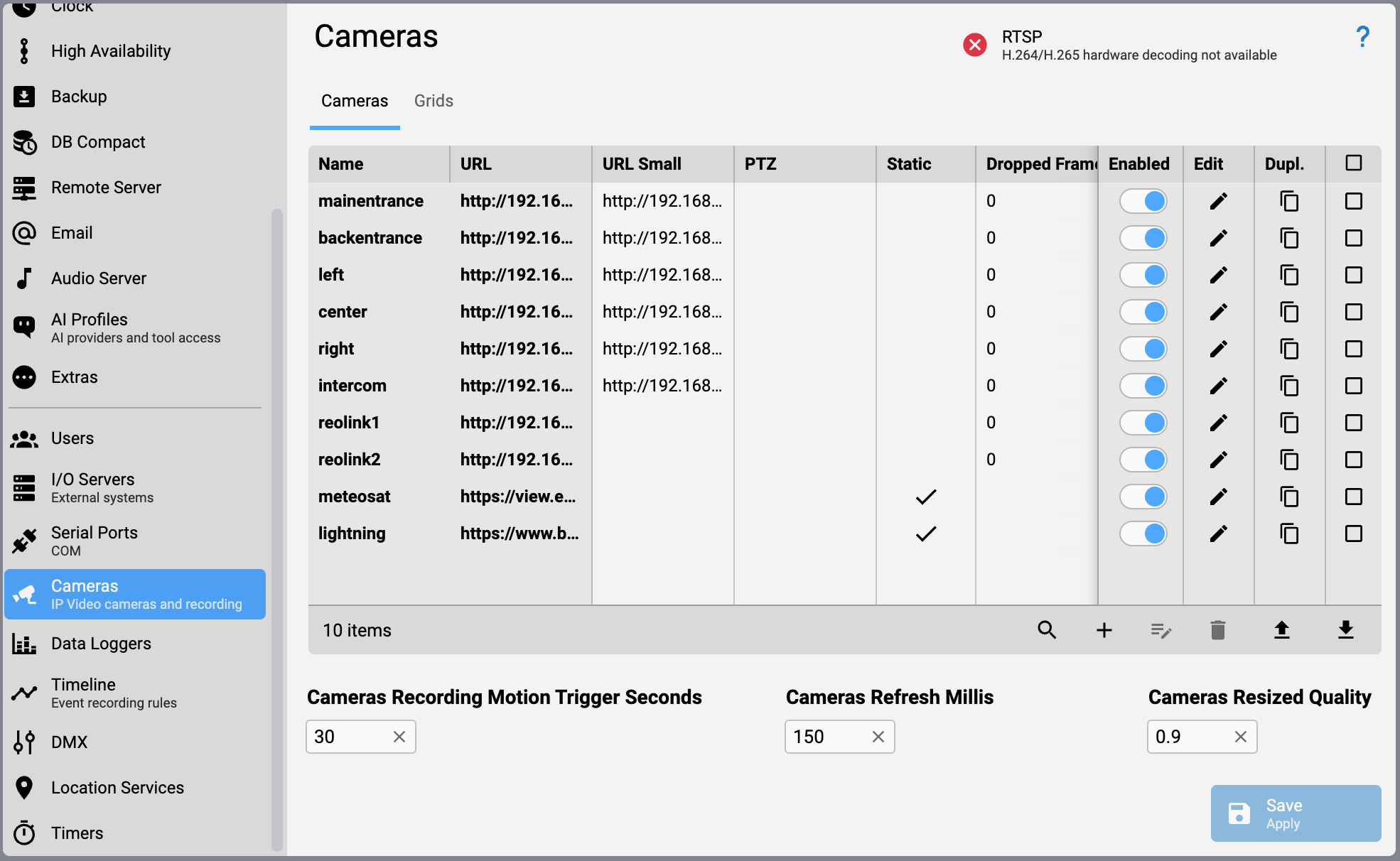
Settings → Cameras: the camera list
The Cameras tab lists every camera with its URLs and flags, PTZ, Static (a slow-updating image feed; see Section 13.2), and Enabled. Three settings below the list apply to all cameras: the motion-trigger recording length, the frame-fetch interval, and the resized-image quality.
Two more per-camera settings control retention and capture timing: Max Age sets how long recorded frames stay on disk before HSYCO deletes them automatically (default 30d; frames can also be purged early if free disk space drops too low). Motion Buffer has HSYCO continuously buffer a few frames ahead of time, so a recording can include video from just before the trigger fired (default 0, disabled; enable it only when you need this pre-roll footage, since it costs memory).
13.2 Static Cameras
Some image feeds update far more slowly than a live camera: a weather satellite image, a rain-radar map, a public webcam that refreshes every few minutes. For these, set the camera's Type to static in its Settings entry.
A static camera behaves differently from a live one:
- HSYCO does not poll the source. A page showing the camera just displays the last frame HSYCO fetched.
- A new frame is pulled only when a
CAMERARECaction runs against that camera, one HTTP request per action; the frame-fetch interval does not apply. - Recorded frames are grouped by day rather than by event.
- The URL field may hold a variable name (starting with
$) instead of a fixed address, so the source URL can be built at runtime.
Because nothing refreshes a static camera on its own, schedule it from EVENTS. This pair of rules re-fetches a satellite image every fifteen minutes:
INIT : PROGRAMTIMER meteosat.refresh = REPEAT 900
PROGRAMTIMER meteosat.refresh : CAMERAREC meteosat = 5
CAMERAREC and the other camera actions are covered in Section 13.5.
13.3 Camera Grids
A grid is a saved arrangement of cameras that you display as a single tile; you can define up to 99 of them. Open the Grids tab in Settings → Cameras, click + to add a grid (it is numbered automatically, 1 to 99), then set its Rows and Columns and choose which camera goes in each cell (Figure 50). Cells can be left empty. Set the grid's resolution, and its remote passwords if it draws cameras from another HSYCO server, then Save.
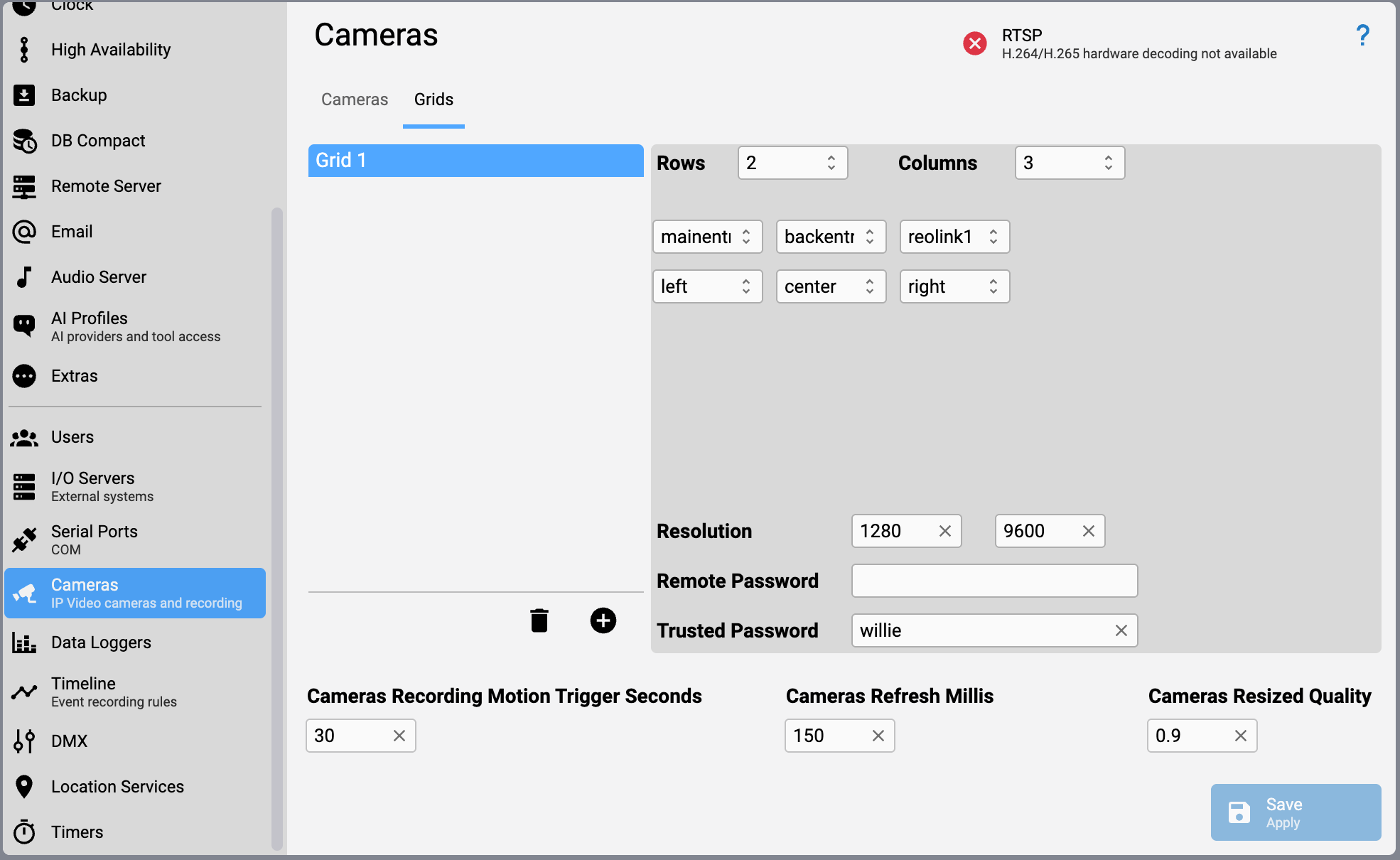
Settings → Cameras → Grids: laying out a camera grid
13.4 Showing Cameras on a Page
Add a Camera object in the Project Editor. Its Mode attribute decides what it shows:
| Mode | Shows |
|---|---|
single (default) | One camera. Set Camera to the camera's name. Optionally set Target to the ID of a larger Camera object so that clicking this view shows the same camera magnified in the target. |
list | A cycling list of cameras. Set Camera List to a comma-separated list of camera names, or leave it empty to cycle every camera flagged Cycle in the Project Camera Config (see below). |
grid | A grid defined under Settings → Cameras → Grids. Set Grid to the grid's index, starting from 1. Clicking a cell drops into list mode and cycles that grid's cameras. |
Mode and Grid are static attributes, fixed when the project is saved. Otherwise you position and size the Camera object on the page like any other object.
For PTZ cameras, those with a PTZ driver set in their Settings entry (axis and axis-vptz for AXIS cameras, shown as Axis and Axis VPTZ in the Settings dropdown, plus drivers for Panasonic, Mobotix, Samsung, and others), the Camera object overlays directional controls on top of the video stream: clicking the edges of the image pans, tilts, zooms, and focuses, and PTZ preset positions can be recalled the same way.
Browsing and Downloading Recordings
Past recordings for a camera are browsed from the Camera object itself, through a scrollable pull-down list of recording events. From there, you can e-mail the current frame or download the recorded video directly from the camera view, no separate application needed. An administrator can restrict who has access to these actions through the acl.ini access control list, which recognizes camera e-mail and download requests as their own command type.
Naming Cameras for This Project
Next to the Camera object's Mode attribute, a link opens the Project Camera Config, a per-project list with one entry for every camera and grid used anywhere in the project. Each entry has:
- Name — the camera or grid ID defined in Settings. Read-only here.
- Label — the caption shown above the camera when it's not in
singlemode (that is, inlistorgridmode). Defaults to the Name in title case if left blank,mainentrancebecomes "Mainentrance". - Cycle — whether this camera is included when a
list-mode Camera object cycles the default set (its Camera List left empty). On by default. Not available for grid entries. - Overlay — an image, from the project's or the shared image folder, overlaid on this camera's feed. Not available for grid entries.
This is where you rename mainentrance to a friendlier display label such as "Main Entrance" without touching the camera's actual ID in Settings.
13.5 Recording from EVENTS
Motion-triggered recording works by having the camera send an HTTP request to HSYCO when it detects movement:
http://<hsyco-address>/x/camerarec?camera=<camera id>
You can also start a recording from any EVENTS rule with the CAMERAREC action, which records for a number of seconds:
IO alarm.sensor = 1 : CAMERAREC entrance = 30
CAMERARECFULL does the same but keeps every captured frame, ignoring the normal dropped-frame setting. CAMERA <id> = OFF disables a camera's live view and recording; CAMERA <id> = ON restores it.