File Manager
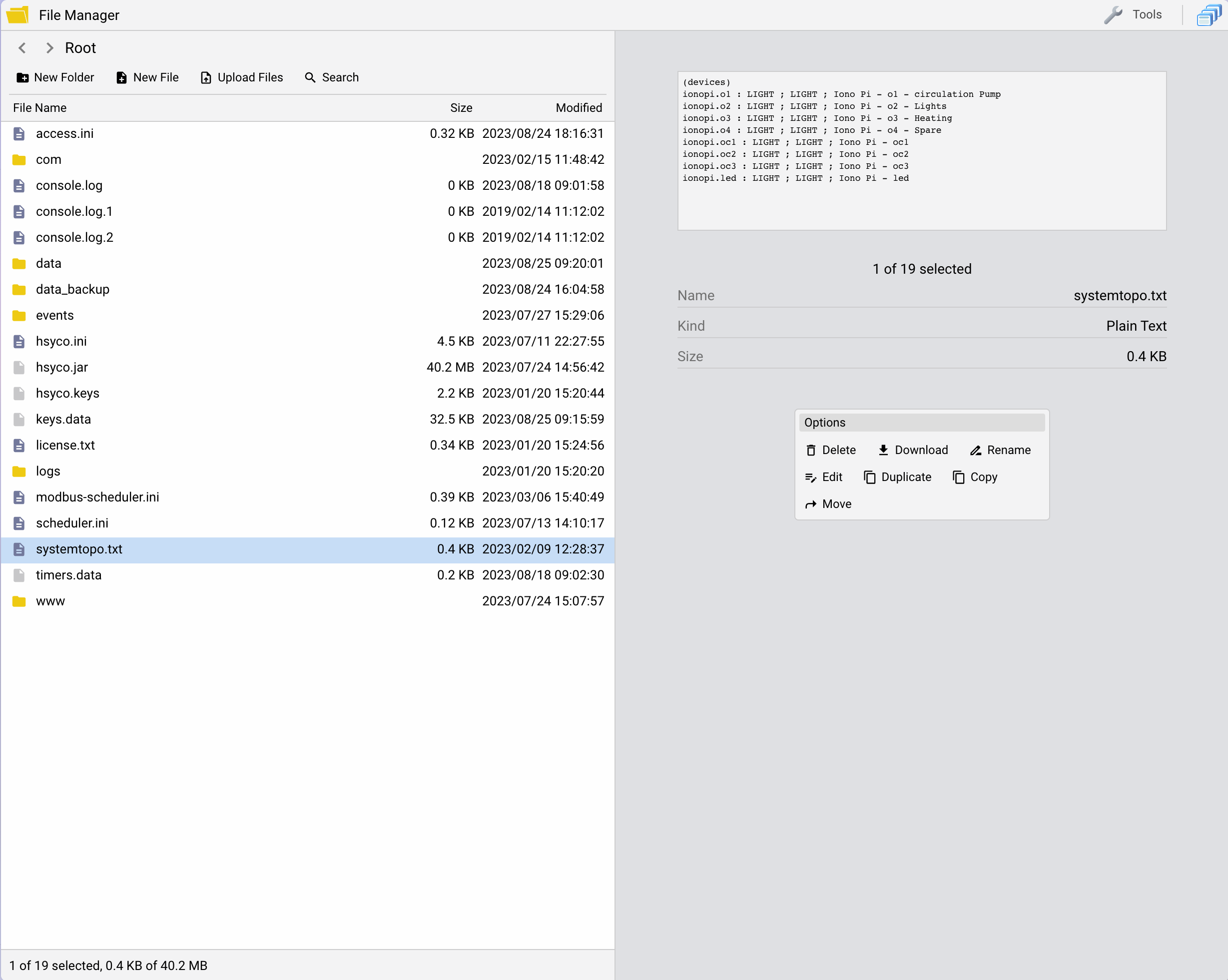
The File Manager application offers all the conventional tools used to manage files, including a text editor to modify text files without having to download them to your computer.
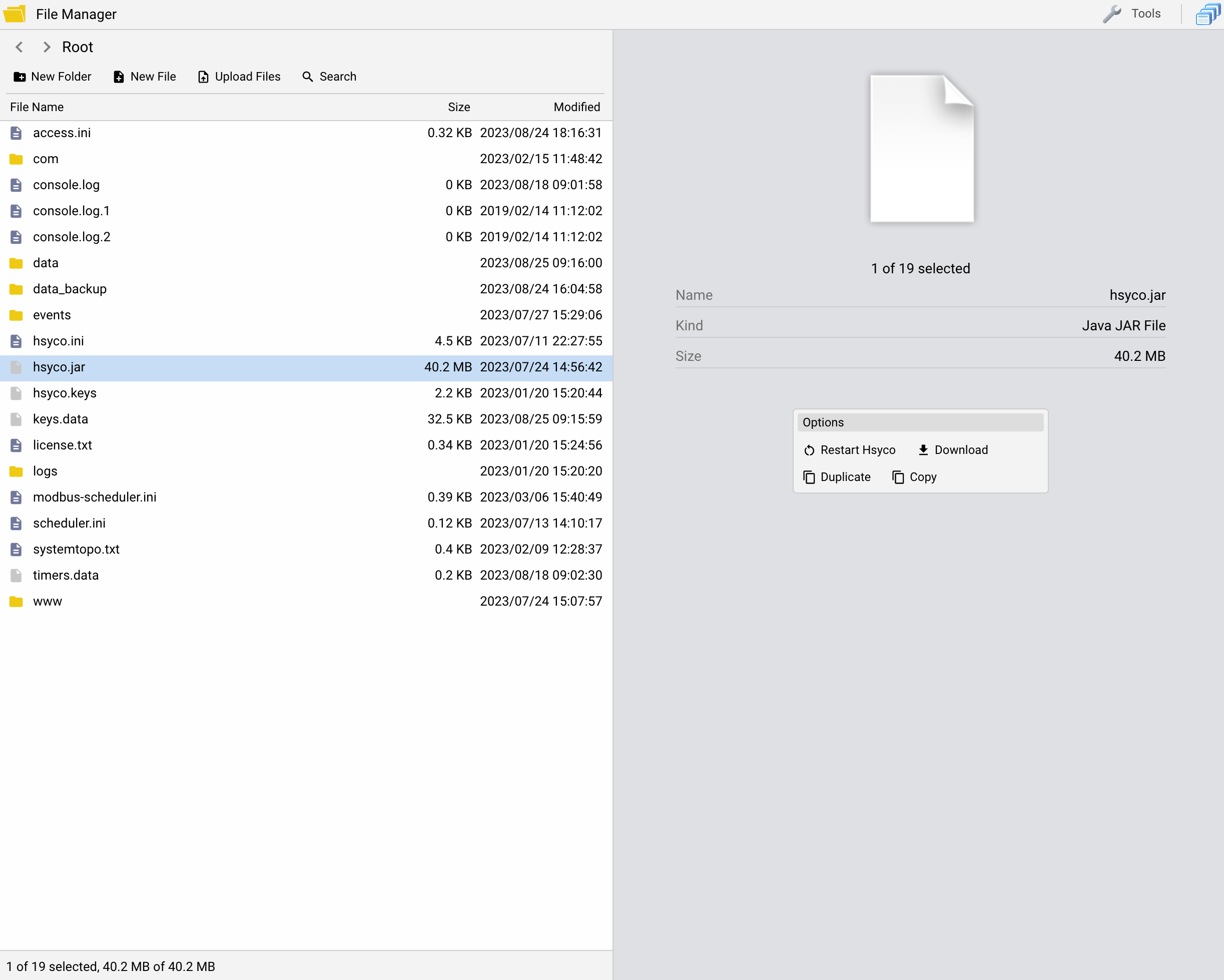
You can download and upload individual files or ZIP directories, and create, rename and delete files and directories.
Click the File Name, Modified or Size column header to sort the current folder. Click the active header again to reverse the sort direction. File chooser popups offer the same sorting behavior for File Name and Size.
Choose Tree view to expand folders in place. Sorting applies within each displayed folder. When folders are expanded, use Collapse all folders above the tree to close every expansion. Open individual subfolders to browse deeper.
Right-click a folder and choose New File… or New Folder… to create inside it. New File… opens the new file in Code Editor; save it to create the file.
Files and directories starting with the "~" character are skipped when downloading directories or the full backup.
You can also activate a small live log view window, quite a useful tool while you are editing files and want to check the logs for debugging.
Your changes will be lost if you accept to reload the new version of the file.
Upgrading and restarting HSYCO
In order to upgrade the HSYCO software version, you should simply upload a new version of the hsyco.jar file to the root directory. After the upload, the server will restart and the Manager will reload on the browser.
You can also manually force an HSYCO restart. To do so, select the hsyco.jar file and press the restart hsyco button in the right panel.
Search Tool
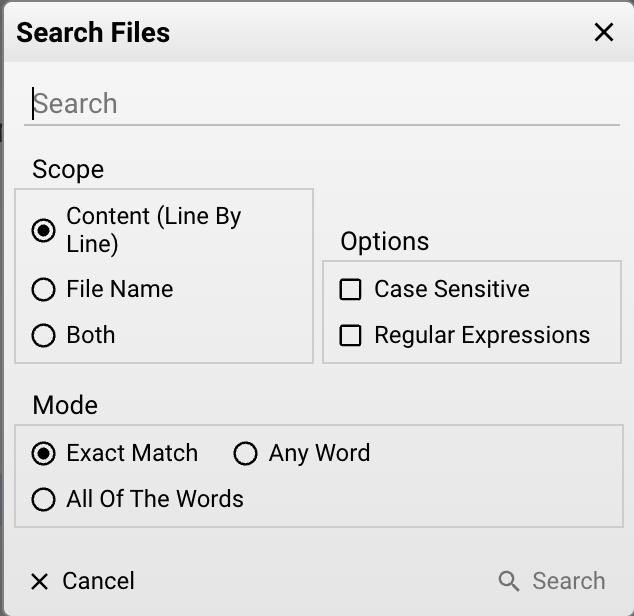
The search tool enables users to search within both the file contents and the file names. Users have the option to perform case-sensitive searches or utilize regular expressions. Furthermore, it is possible to match any word within the search string, opt for an exact match, or include all of the words in the search query.
Layout
Use Tools → Layout for workspace layout options.
Drag the divider to resize the preview. Its width is remembered; Tools → Layout → Reset preview width restores the default sizing. In narrow windows, use Details to open the preview.