Client Certificates and mTLS
HSYCO supports Mutual TLS (mTLS), an authentication method where both the server and the client provide certificates to verify each other's identity. This adds a critical layer of security by ensuring that only authorized clients possessing a specific certificate in their local keystore can communicate with the HSYCO server.
The Client Truststore
Client certificates are managed within a dedicated truststore file named clients.keys located in the HSYCO root directory. This file is separate from the server's own certificate store (hsyco.keys).
To maintain a clean system, the clients.keys file is only created upon the first generation or import of a certificate. If mTLS services are not used, no additional files are created on the disk.
Validation Logic
When mTLS is enabled via the RequireMTLSWebUI or RequireMTLSHttpRaw options (look at the mTLS section to learn more about these options), HSYCO performs the following validation steps during the TLS handshake:
- Certificate Requirement: The server requests a certificate from the client to establish a secure, authenticated connection.
- Trust Verification: The client's certificate must be trusted by the entries in the clients.keys truststore. This allows for the use of specific client certificates or certificates issued by a trusted Certification Authority (CA) stored in the truststore.
- Validity Check: HSYCO verifies that the certificate is currently within its validity period (neither expired nor not yet valid).
If any check fails, HSYCO logs an error with the client's IP address and denies the request.
Managing Certificates
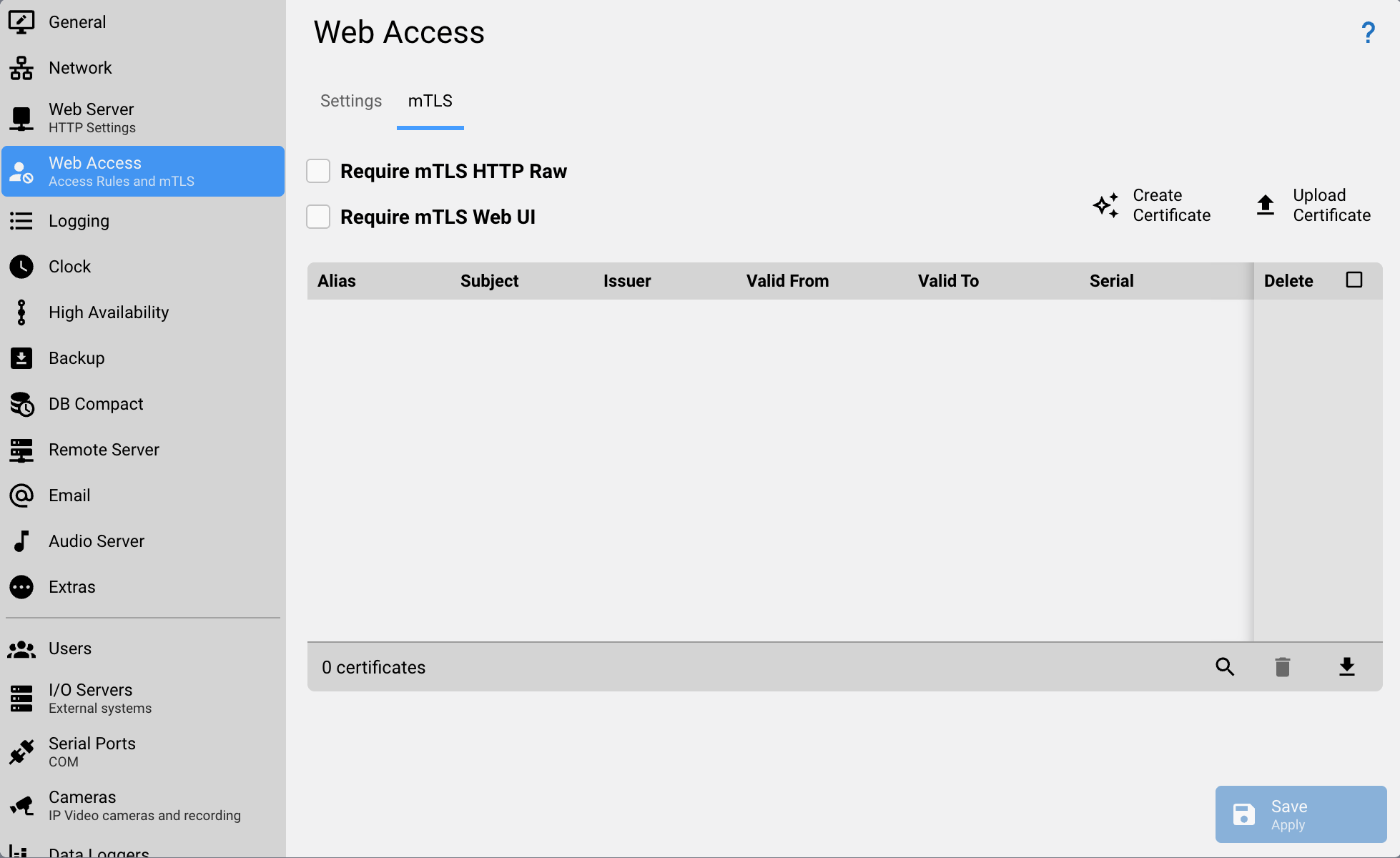
HSYCO provides tools to generate or import client certificates.
Generating Client Certificates
You can generate self-signed client certificates directly within HSYCO.
- Format: The generated certificate uses RSA 2048-bit encryption signed with SHA256.
- Details: You can specify the Alias (unique within the truststore), Common Name (CN), Organization (O), Organizational Unit (OU), Locality (L), State (ST), and Country (C) (which must be a valid 2-letter ISO code).
- Export: HSYCO generates a PKCS12 (.pkcs12) file protected by an optional password, which can be downloaded and installed on the client device.
- Automatic Trust: The public part of the generated certificate is automatically added to the clients.keys truststore.
Importing Certificates
Existing certificates can be uploaded to the HSYCO truststore in several formats:
- PKCS12 (.p12, .pk12, .pkcs12, .pfx): Typically used for individual client identities; the import password is optional.
- PEM (.pem, .crt, .cer): Standard text-based format. HSYCO extracts the certificate and uses the Common Name (CN) as the alias.
- DER (.der): Binary format for X.509 certificates.
Deleting Certificates
To revoke access, a certificate can be deleted from the truststore by its alias. Once removed, the client will no longer be able to authenticate, and HSYCO will reject any subsequent connection attempt from that client.
Security and Operational Considerations
Backups and High Availability
The clients.keys file contains the only copy of the trusted whitelist. It is critical to include this file in the backup strategies.
Root Backup: Ensure clients.keys is not listed in the RootBackupExclude parameter if HSYCO's automatic Root Backup is enabled.
High Availability: In HA configurations, the clients.keys file is automatically synchronized between the Master and Slave servers so that client access is consistent regardless of which server is active.
Automatic Reload: HSYCO automatically monitors the clients.keys file for changes. Whenever the file is modified - whether through the Web Interface, synchronization from a Master server, or manually on the disk - HSYCO automatically reloads the truststore. This ensures that new certificates, revocations, or manual edits are immediately reflected in both the Web Interface and the server socket without requiring a restart.
The "Common Name" (CN) Requirement for Imports
When importing raw certificate files (.PEM or .DER) that do not contain a friendly alias (unlike PKCS12), HSYCO strictly requires the certificate to have a Common Name (CN) defined in its Subject. HSYCO uses this CN as the unique alias in the truststore. If the CN is missing, the import will fail.
Verifying Certificate Fingerprints
To ensure the integrity of your trusted clients, HSYCO calculates and displays the SHA256 Fingerprint of every certificate in the truststore. You can cross-reference this fingerprint with the details of the certificate installed on the client device to confirm that no substitution has occurred.
System Time and Clock Drift
Certificate validation relies heavily on the server's system time. If HSYCO's internal clock is incorrect (e.g., due to a reboot without NTP synchronization), perfectly valid client certificates may be rejected as "not yet valid" or "expired." Ensure your server is configured to synchronize time automatically via NTP (see Clock Settings).
Chain of Trust (CA Support)
HSYCO allows you to import the certificate of a Certification Authority (CA) into the truststore. This is highly efficient for large deployments: instead of importing every individual client certificate, you only import the CA certificate. HSYCO will then automatically trust any client certificate presented during a handshake that has been signed by that CA.
Browser Behavior and Log Alerts
When accessing HSYCO via a Web Browser, you may occasionally notice error entries in the logs even when using a valid certificate. This is often due to standard browser behavior:
- Initial Connection: Some browsers may first attempt to connect without presenting a certificate.
- Automatic Retry: Upon receiving the server's request for a certificate, the browser "corrects" itself by retrying the request with the appropriate client identity.
- Result: While the user experience remains seamless, the initial failed attempt may leave a transient error log. This is normal behavior for many modern browsers and does not necessarily indicate a security breach.
Expiration and Lockout Risks
Because mTLS happens at the connection layer, an expired certificate will prevent access before the Web UI login page even appears.
- Proactive Renewal: Periodically check the "Valid Until" date of your client certificates in the Manager. You should generate and install a new certificate before the current one expires.
- Web UI Lockout: If RequireMTLSWebUI is enabled and your only administrative certificate expires (or is deleted), you will be completely locked out of the HSYCO Web Interface.
- Recovery: In the event of a lockout, you must gain access to the server's file system (via SSH or physical console) to manually edit hsyco.ini and set RequireMTLSWebUI=false to restore standard access.
Performance and Security
- Identity Uniqueness: HSYCO enforces alias uniqueness in the truststore. You cannot import a certificate with an alias that already exists, preventing accidental overwrites of existing authorized identities.