Alarms Manager Plugin
This plugin provides an application for monitoring and configuring alarm reporting for installations comprising heterogeneous devices such as sensors, input/output devices, network devices, and IP cameras, managed by multiple users possibly divided into groups.
The application generates alarm logs and notifies users via e-mail, SMS text messages, and/or Telegram.
This app works with any I/O Server providing datapoints representing input/output devices or sensors and can be used in combination with the GSM I/O Server, SMTPSERVER I/O Server, and Telegram I/O Server to send notifications and receive commands and group messages.
Multiple GSM modems can be used to speed up delivery time of multiple messages and increase fault tolerance.
Before using the app, configure all the I/O Servers and cameras needed and make sure they all communicate correctly with HSYCO.
To view the Alarms Manager interface, go to the URL of the alarms2 project on your server; for instance:
https://192.168.1.50/hsycoserver/alarms2
There are two additional interfaces for mobile devices: alarms2small and alarms2small2, which offer the same functionalities except for the configuration section.
From the Main Page
You can access the different sections:

Configuration
To access the configuration page, click on the icon in the bottom-right corner of the main page.
Only available to HSYCO admin users.
All enabled devices will be listed in the application with a specific view interface.
A link to the Wiring Editor is also provided at the bottom.
Areas
Areas represent separate locations. You can create a hierarchical area structure by assigning parent areas.


I/O Devices
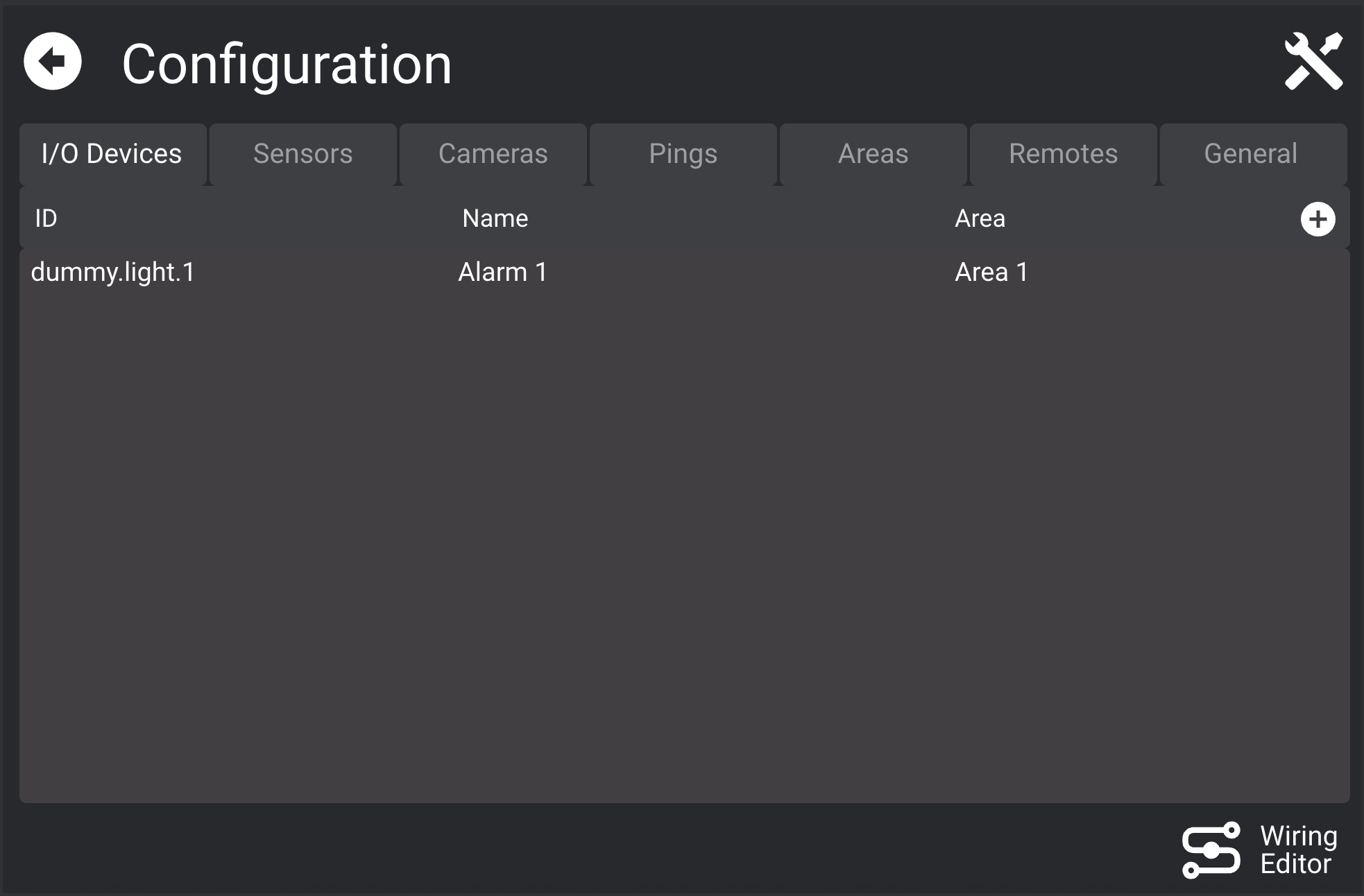

Define datapoints with discrete values (e.g., 1/0 = ON/OFF).
- Use custom value format like
1:OK,2:WARN,3:ERROR - Mark as Writable if user interaction is allowed
Sensors
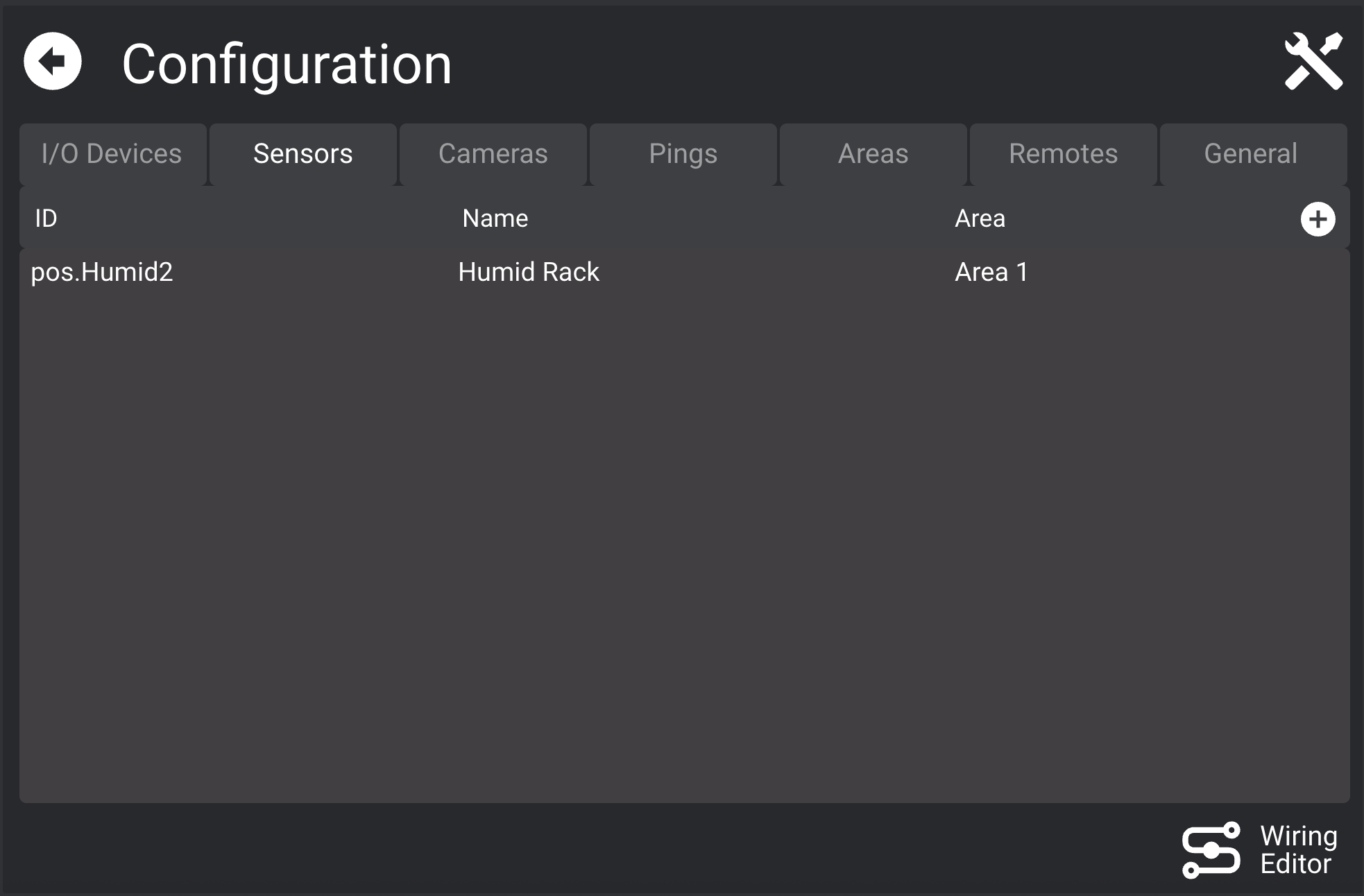
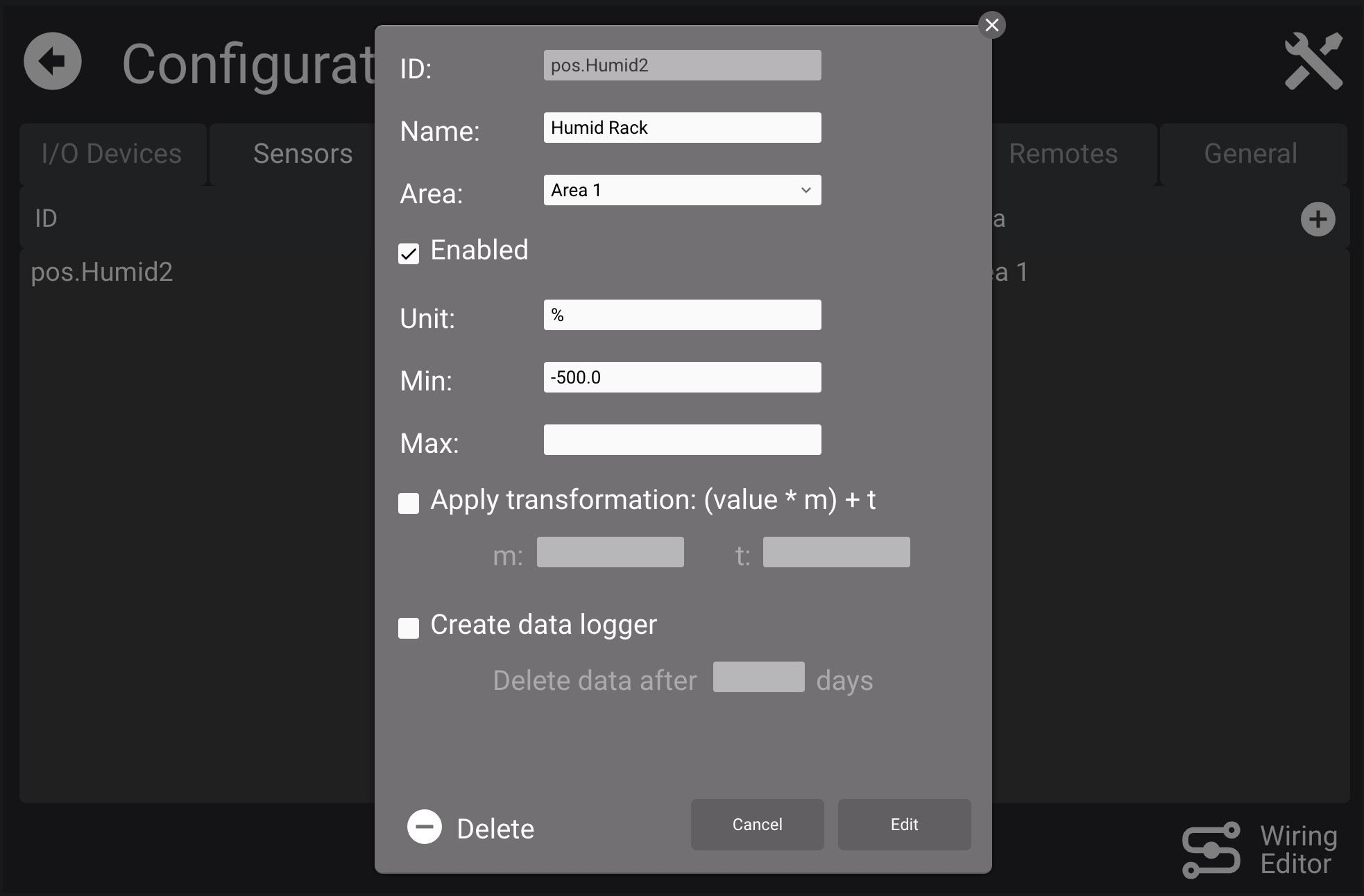
Use for analog values (temperature, pressure, etc.).
Configuration options:
Unit,Min/MaxrangeApply transformation: appliesy = m*x + tCreate data logger: optional [Data Logger](Data Loggers)
Pings
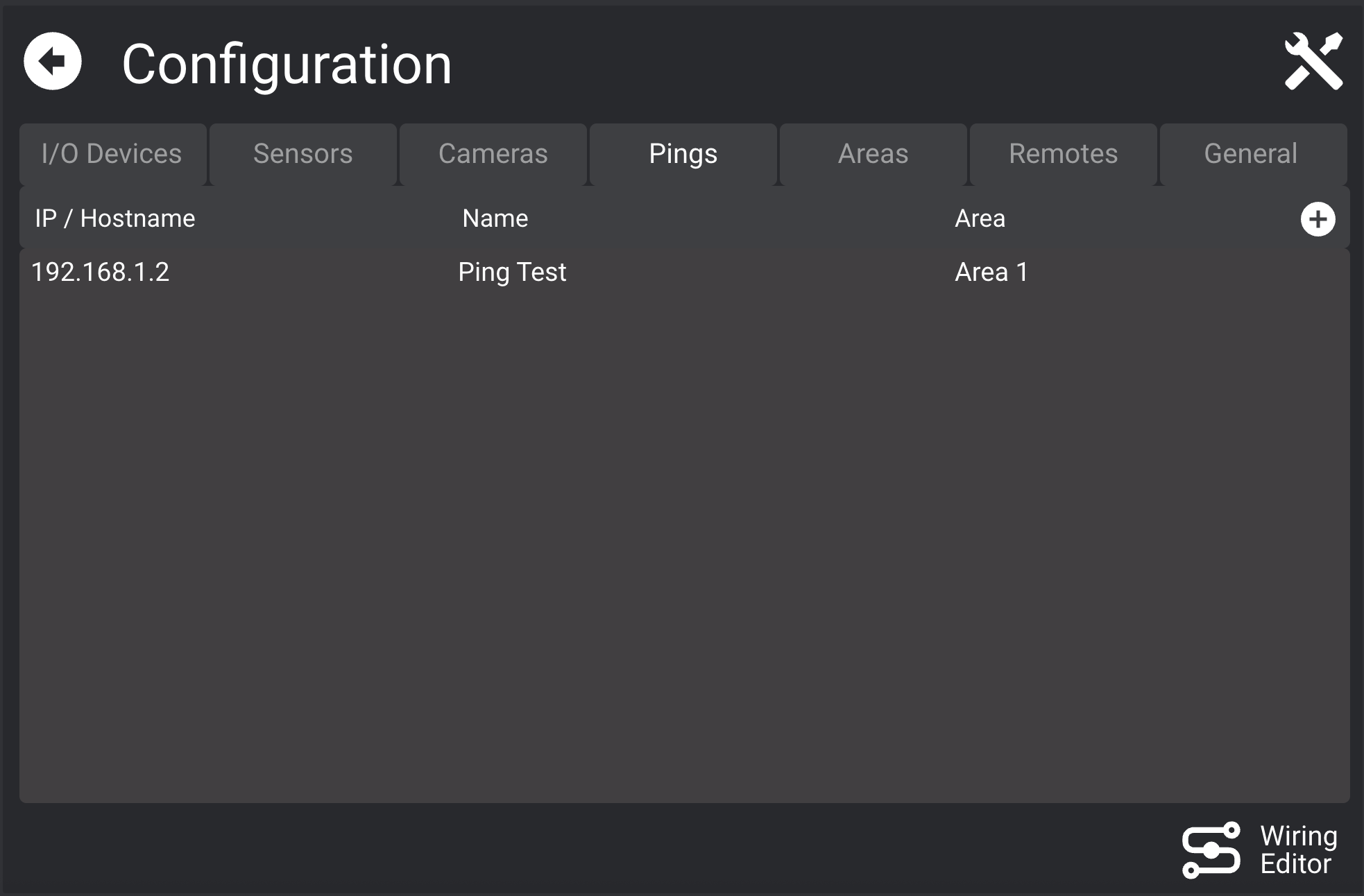
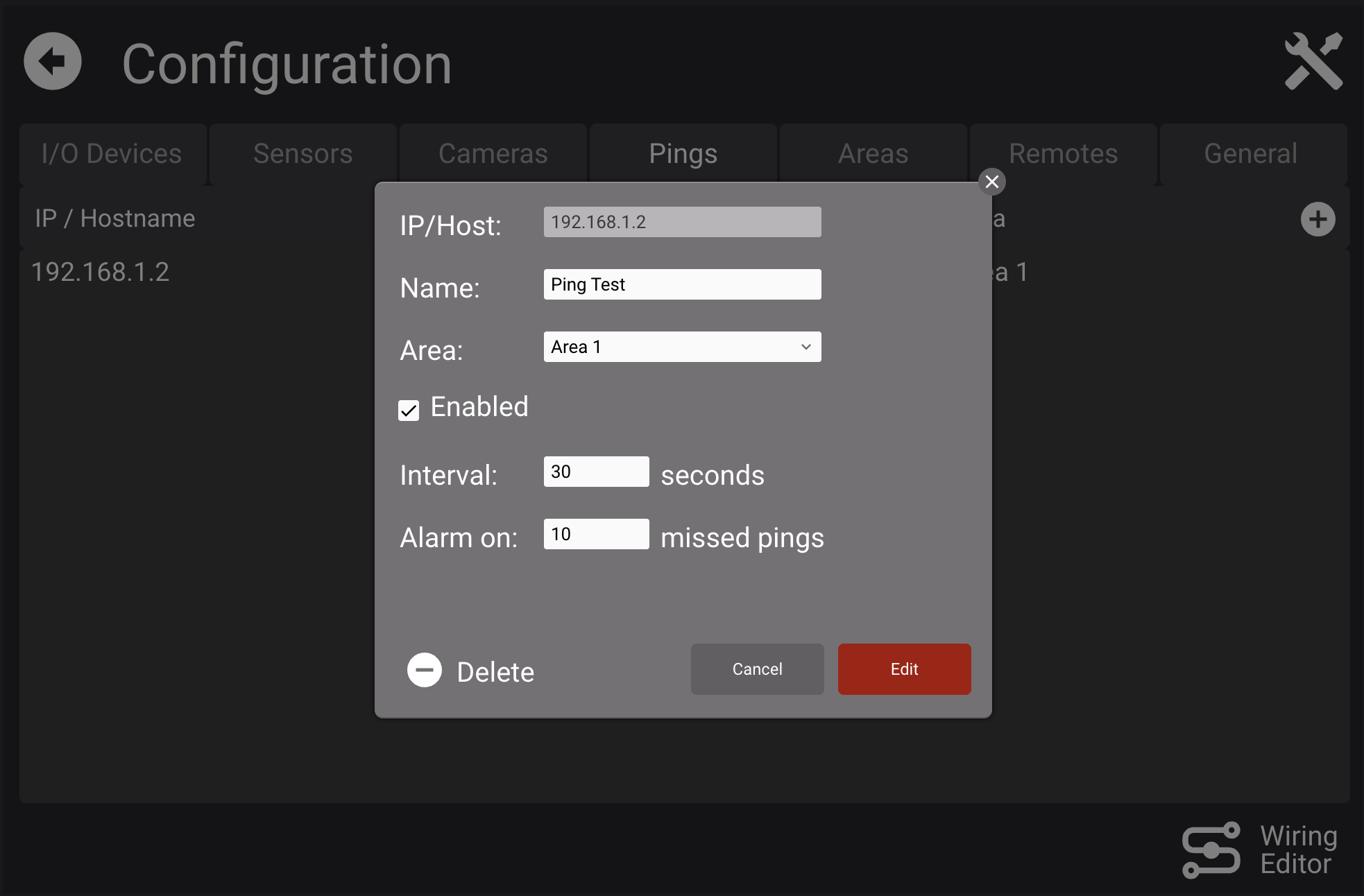
Monitor network device connectivity via ping.
- Set
intervaland failure threshold
Cameras
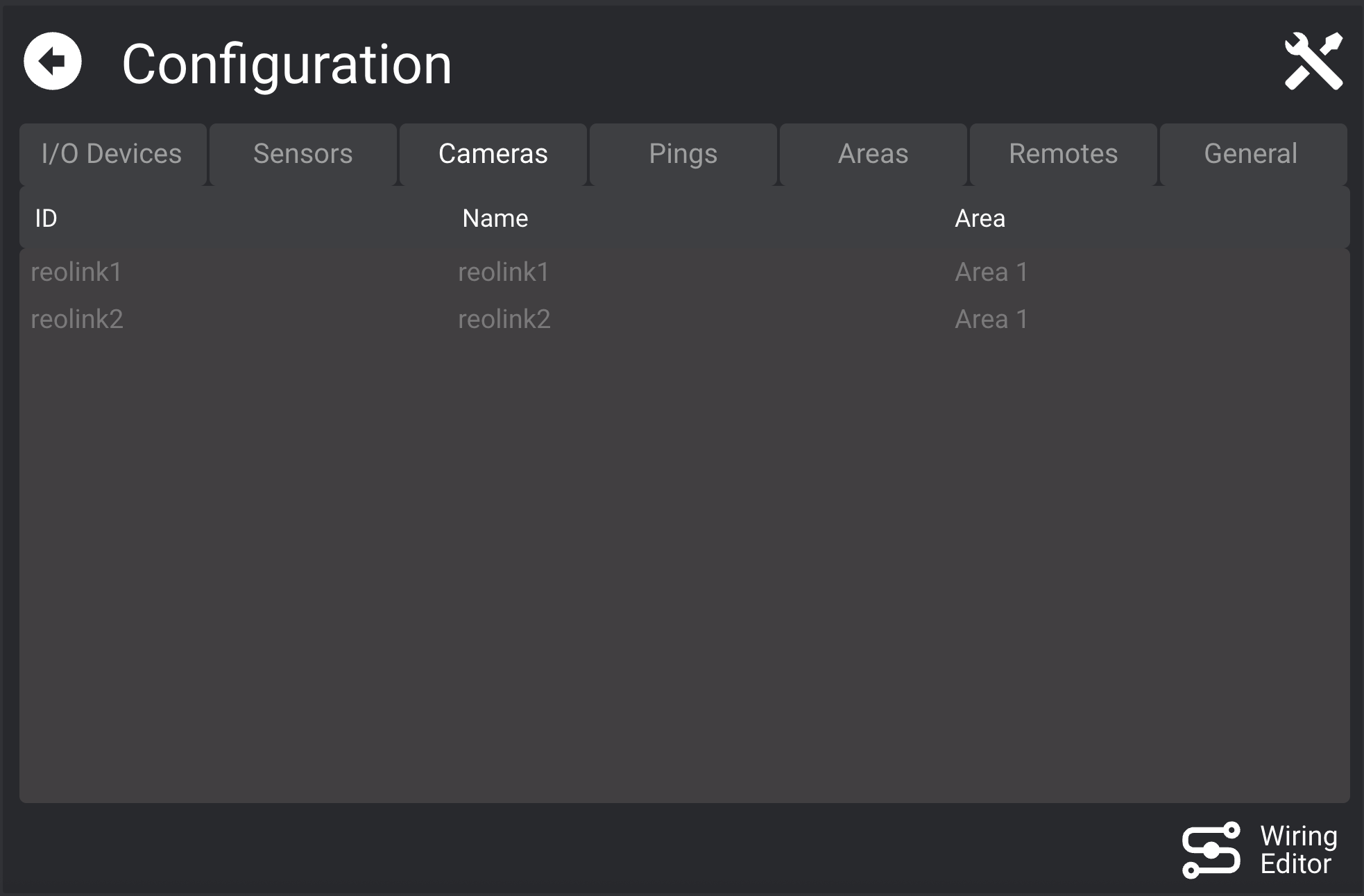
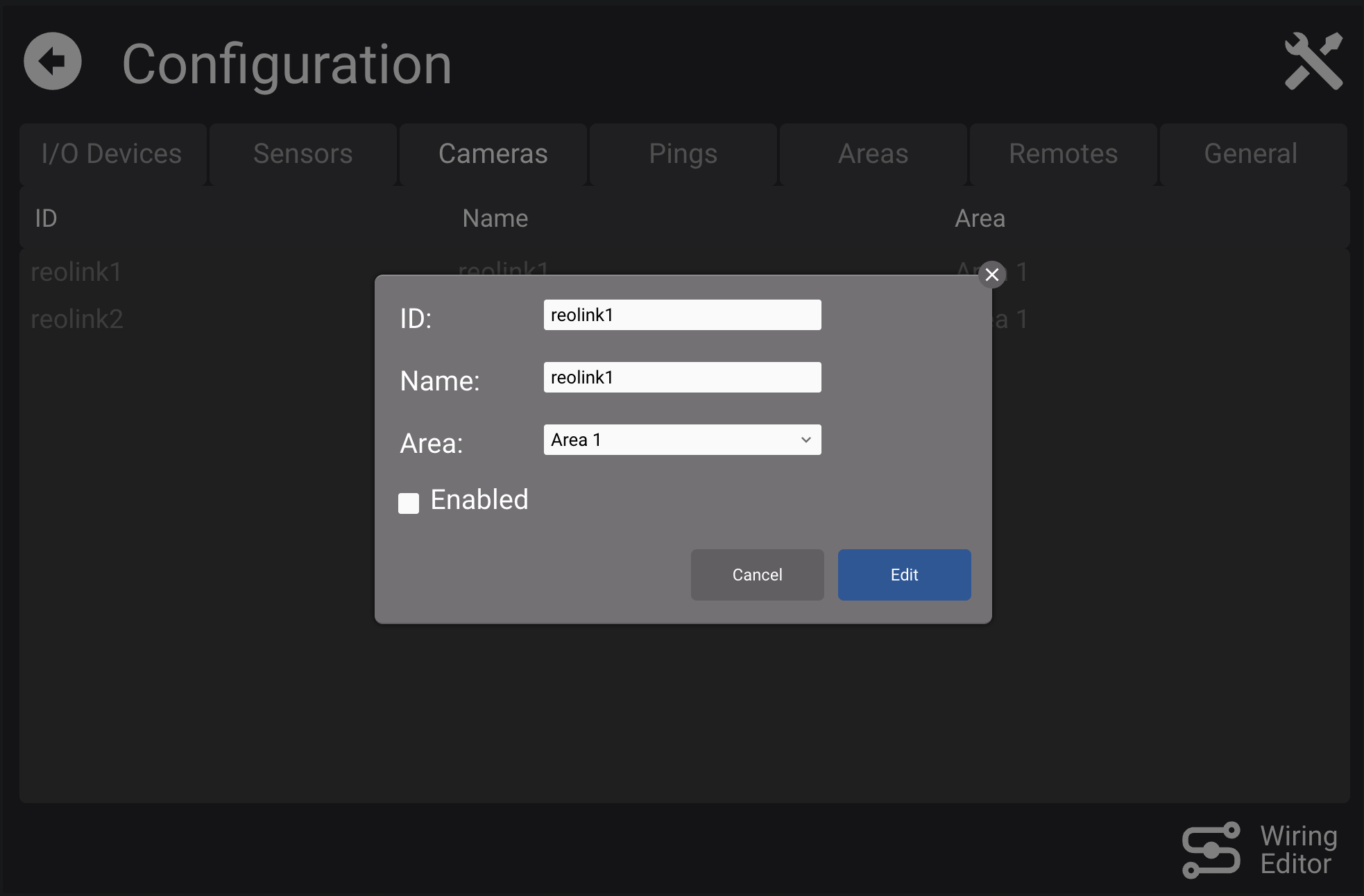
Enable/disable cameras, assign name and area.
Configured cameras come from HSYCO settings.
Remotes


Add devices like IonoPi I/O Server sending SMS in the format:
<msg_id>;<digital_dp_1>=<val>;<analog_dp_1>#<val>;...
Each datapoint is mapped to a variable:
$REMOTE.<remote_id>.<dp_name>
A timeout variable is also created:
$REMOTE.<remote_id>.TIMEOUT
General

Delete log files after X daysE-Mail senderMax recording time on manual commandTelegram registration command
Groups

Define sets of users monitoring shared devices.
- Set active days and time slots
- Mark as receiving system alarms from System I/O Server
Users
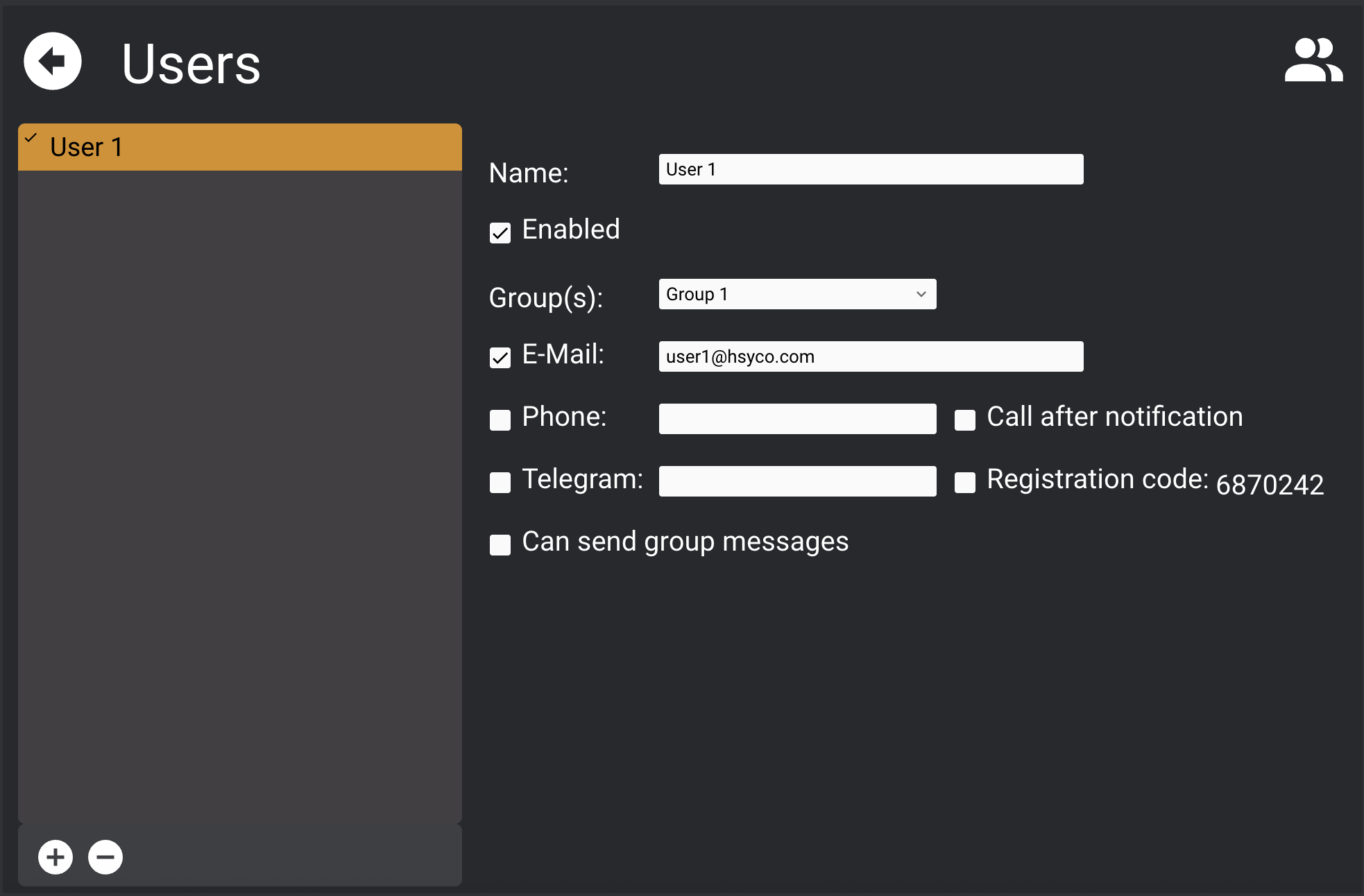
Create/delete users. Options:
Enabled: receive notificationsGroup(s)E-MailPhone: for SMS (via GSM I/O Server, SMTPSERVER I/O Server)Call after notification: optionalTelegram: Telegram ID or use registration commandRegistration code: auto-detect Telegram IDCan send group messages
I/O Devices
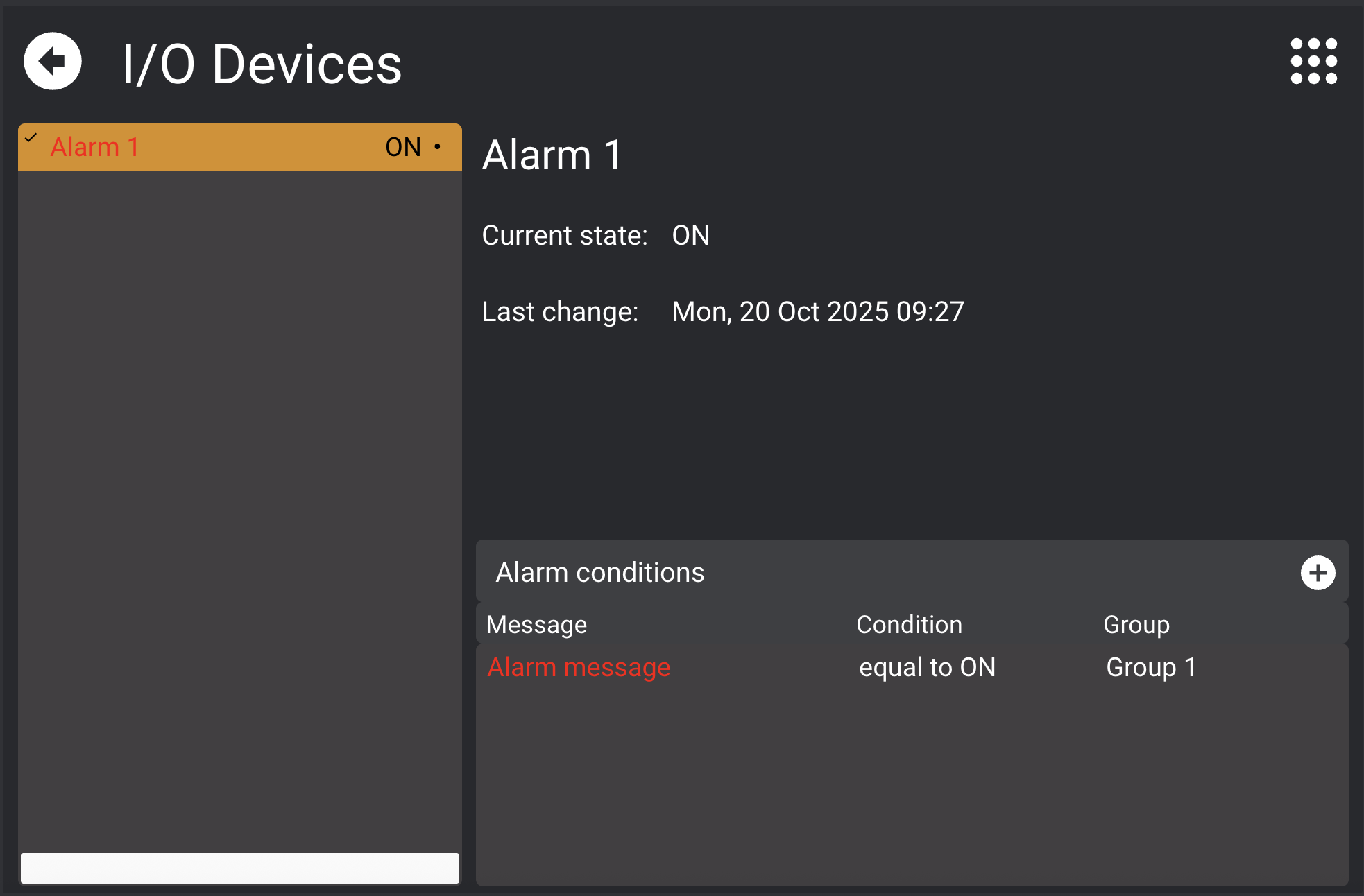
View and control I/O Devices. Define alarm conditions:

Alarm options:
Notification delayStop notifications after alarm for
Devices with alarms show a "•" symbol.
Active alarms turn the name and condition red.
Sensors
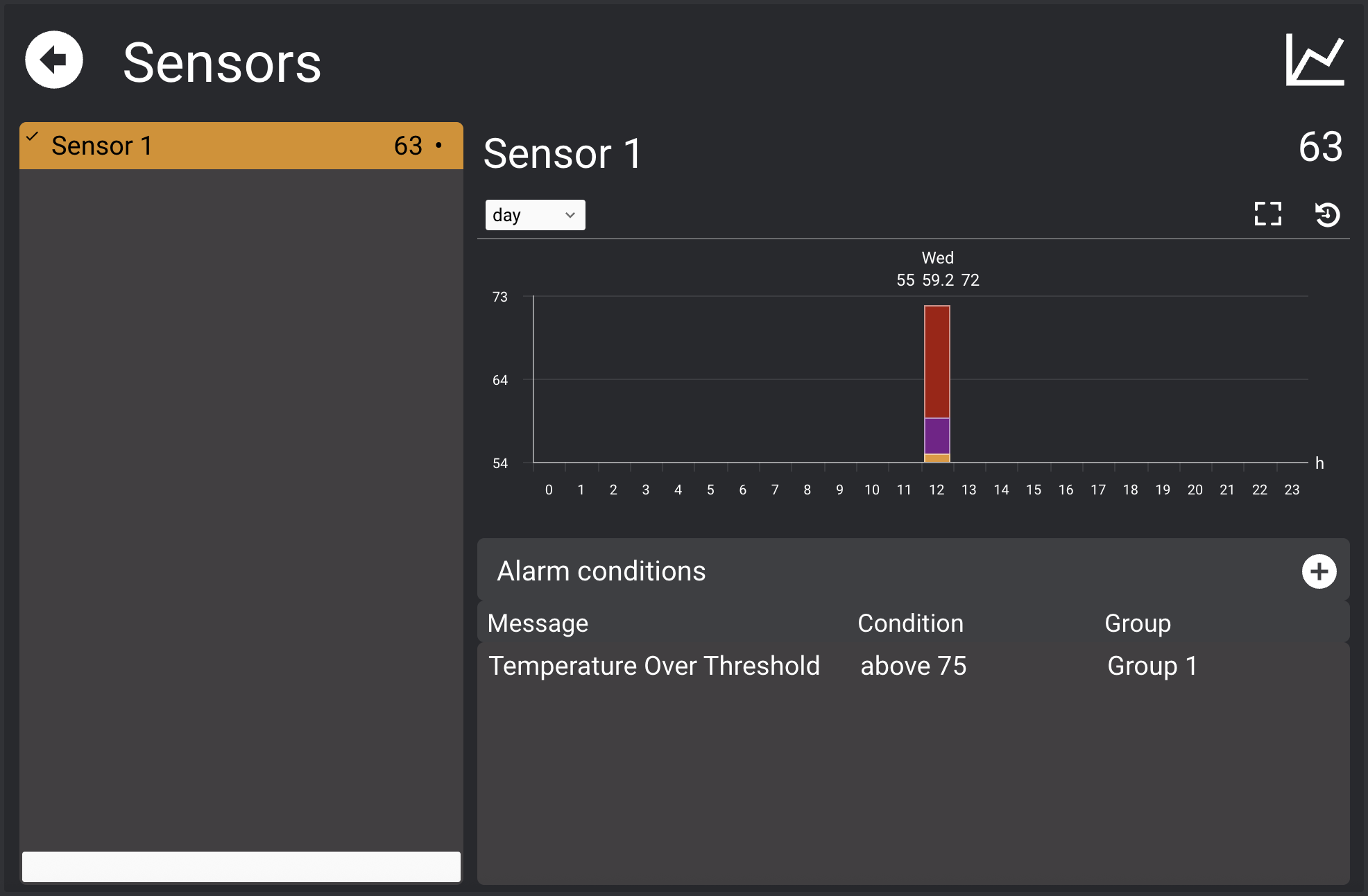
Monitor sensor values and optionally view historical data.
Define alarm conditions similarly:

Cameras

View video streams, manually record images.
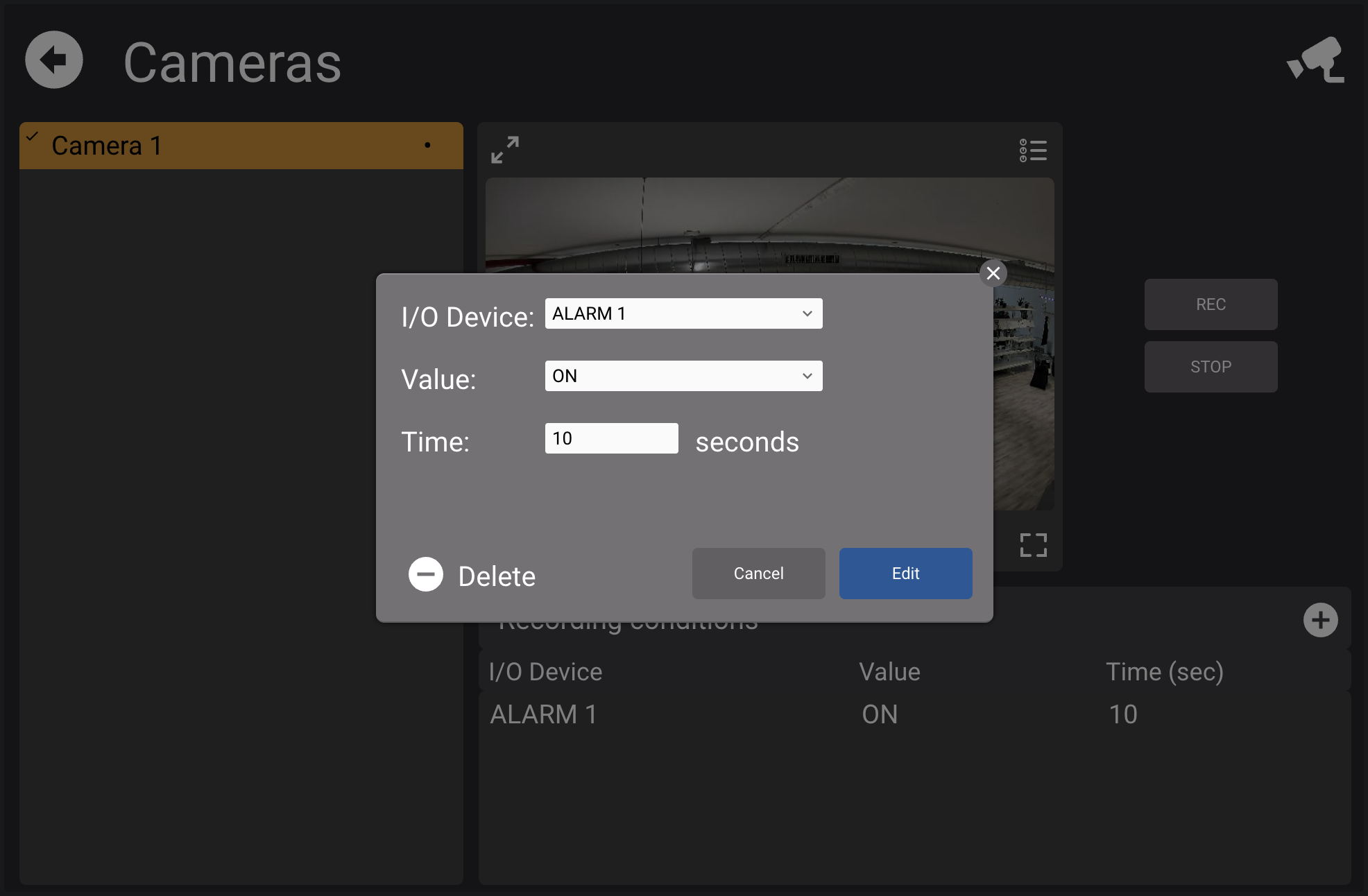
Define recording triggers:

Ping
View monitored devices and set groups to notify on failure.
Log

View all recorded alarm events.
- Export logs via email (CSV)
- Delete entries
- Stored in
alarms_manager_data/logson server
Group Messages
Enabled users can send group messages via:
- SMS (GSM)
- E-mail (SMTP)
- Telegram
Message Format:
<area>:<group1>,<group2>#<message>
You can omit area/groups to send to all users.
Use delimiters to isolate content:
=>=to mark start=<=to mark end
Email Address Format:
<username>+<area>%<group1>#<group2>@domain
Examples:
alarms+area1%group1#[group2@hsyco.com](mailto:group2@hsyco.com)
alarms+group1#[group2@hsyco.com](mailto:group2@hsyco.com)
alarms+area1%@hsyco.com
Events
The application generates USER events:
alarm.<datapoint_id> = 1       // condition is TRUE
alarm.<datapoint_id> = 0       // condition is FALSE
alarm_notif.<datapoint_id> = message  // notification sent
Enable/disable users with:
USER "alrmsmngr2.user.<user_id>" = "<0,1>"
Control Variables
Toggle notifications:
$alrmsmngr2.disable.alarms = 0  // enabled
$alrmsmngr2.disable.alarms = 1  // disabled
File Messages Extension
An optional plugin for file-based messages and alternate SMS routing.
File Messages
Writing text files in a sub-directory named alarms_manager_messages will generate alerts to the appropriate SMS destination numbers, based on the current schedule defined in the Alarms Manager or the alternative routing logic.
The alarms_manager_messages sub-directory is also accessible—just like the main HSYCO directory—from remote systems as a shared HSYCO network disk server.
The plugin constantly scans the alarms_manager_messages directory for text files (files starting with ".", and the special-purpose schedule.txt file are ignored) that follow the format:
<line1>
...
<lineN>
=end=
Files are ignored if the last line is different from
=end=. This prevents processing files that are not yet fully written by an external application.
You can have multiple message lines in each file. Each line can contain a plain message or include a destination prefix with area and group(s) IDs.
Accepted formats:
<message>
#<message>
<group>#<message>
<group1>,<group2>,...,<groupN>#<message>
<area>:<group1>,<group2>,...,<groupN>#<message>
The # character separates area/group prefixes from the message.
If you need to use # in the message, always prepend the message with #, even if you don't specify groups.
If no area or group is set, the message is sent to all users associated with any group in the Alarms Manager.
Text files are automatically deleted after processing.
message.txt Example
This is an alert message to all users.
#This is an alert message to all users, with one or more ## characters in the text.
main_area: day, night#This is an alert message to users of groups day and night in area main_area
Alternative Alert Routing Logic
An alternative alert routing logic, overriding the weekly schedule in the Alarms Manager, is available via a text file called schedule.txt, located in the alarms_manager_messages directory.
Each line defines a routing rule using the format:
<date-time-from>,<date-time-to>,<timeout>,<user1>,...,<userN>
*,*,*,<user1>,...,<userN>
The <user> fields represent GSM numbers of active users in the Alarms Manager. Invalid or unregistered numbers are ignored.
A rule matches when:
date-time-from <= current time < date-time-to
Supported date-time formats:
YYYYMMDDHHMM
YYYYMMDD-HHMM
YYYYMMDD-HH-MM
YYYY-MM-DD-HHMM
YYYY-MM-DD-HH-MM
How It Works
- Each message is sent to the first matching user.
- The recipient must acknowledge it via SMS within
<timeout>seconds. - If no acknowledgment is received, the alert is forwarded to the next user in the list.
- If no user responds or all are disabled, the alert is sent to a jolly list (a fallback user group).
The jolly list is defined as:
*,*,*,<user1>,...,<userN>
An acknowledgment is any SMS reply except the special messages "on" and "off", which are used to enable or disable a user.
schedule.txt Example
20160101-00:00,20160201-00:00,30,3331021340,3285043097
201510061200,20151007-12:00,30,29652932,29652932,29652931
2015-10-07-12:00,20160101-12:00,30,29652937,29652938,29652939
*,*,*,3489259249,3306046740,3109893094