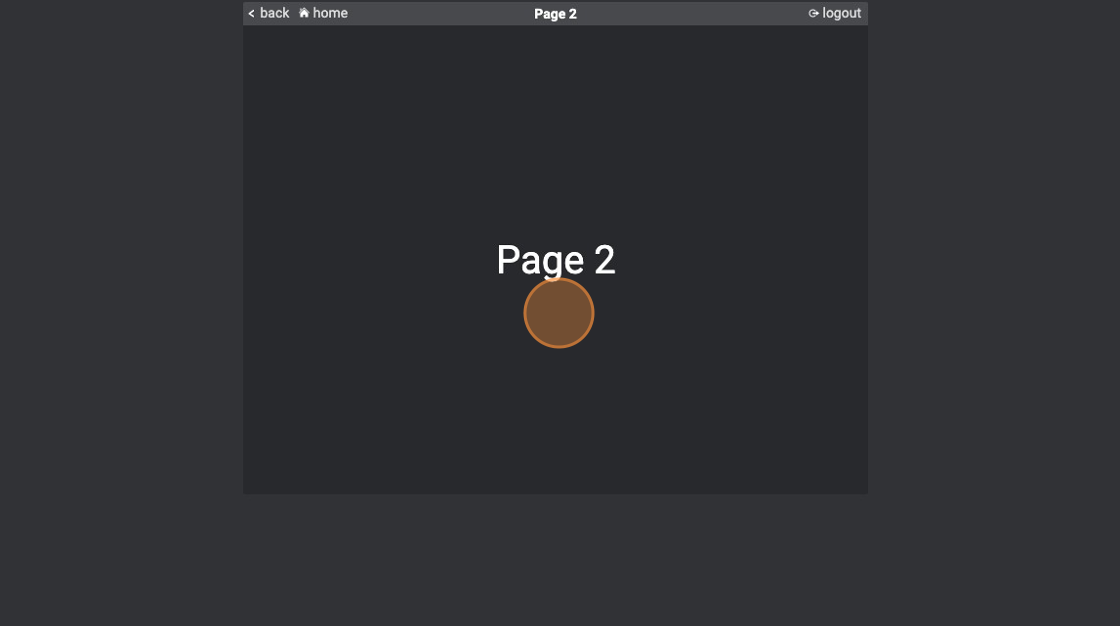
Page attribute
-
Navigate to HSYCO Manager
-
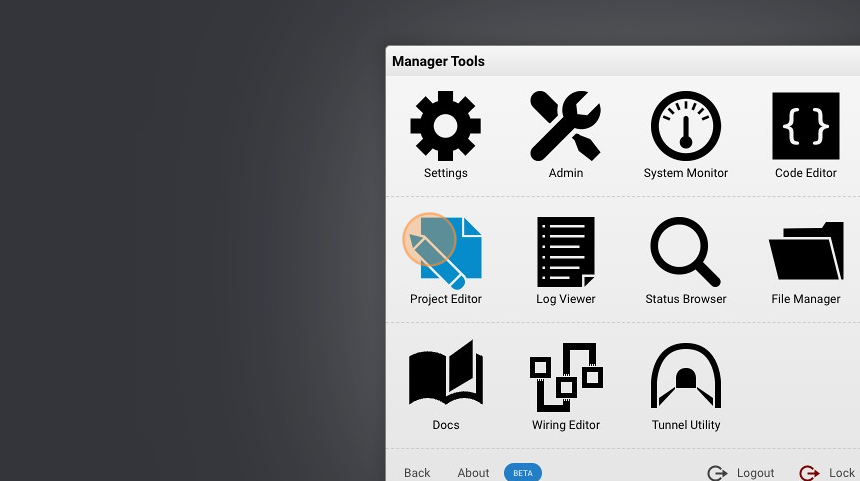
Go to "Project Editor"
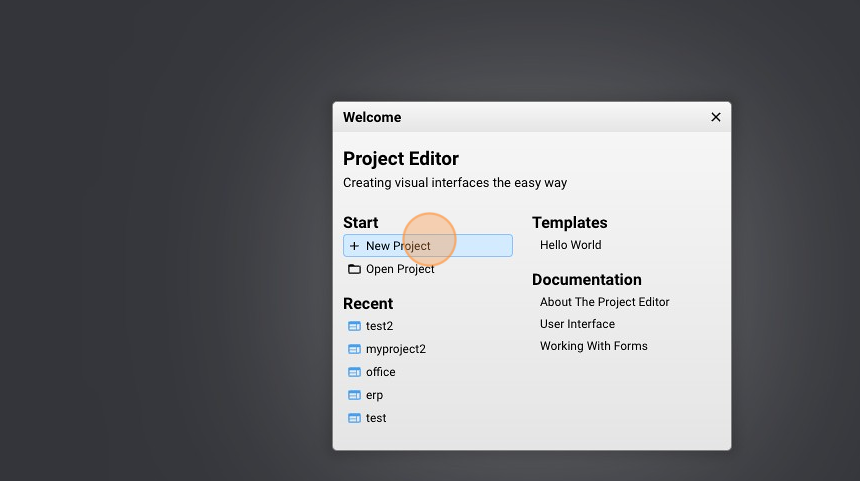
- Click "New Project"
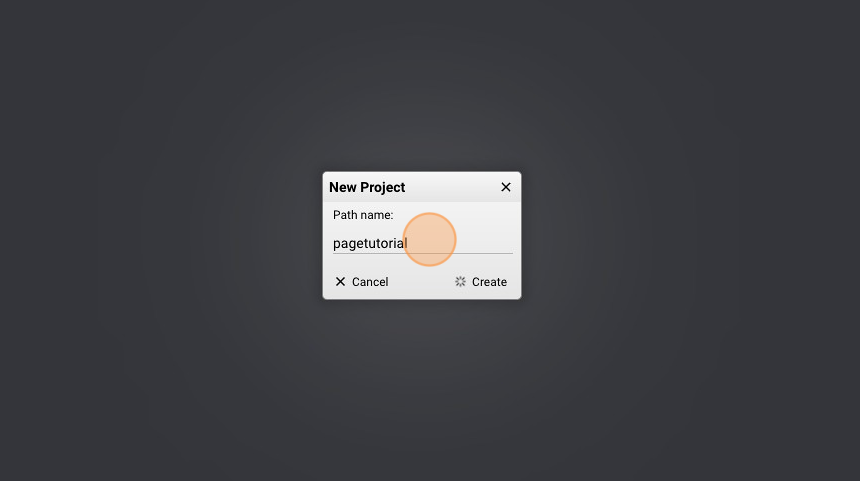
- Give it a name ("pagetutorial" for example) and click "Create"
- Go into the "Homepage"
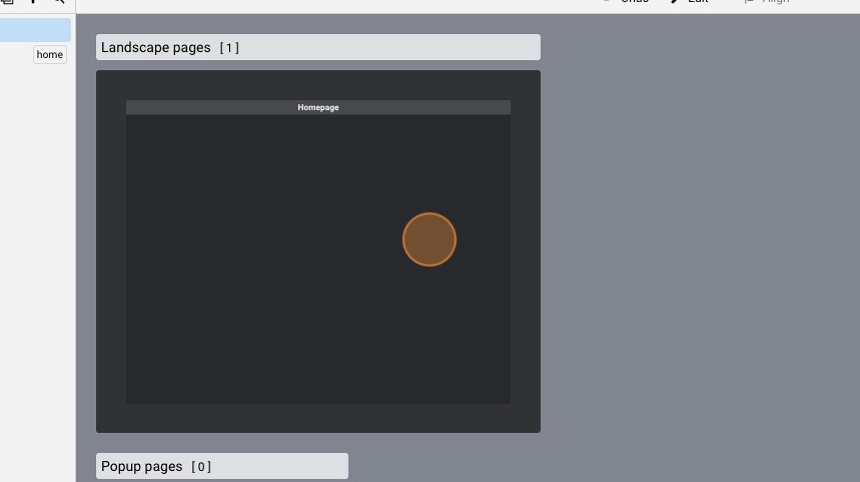
- Click "add"
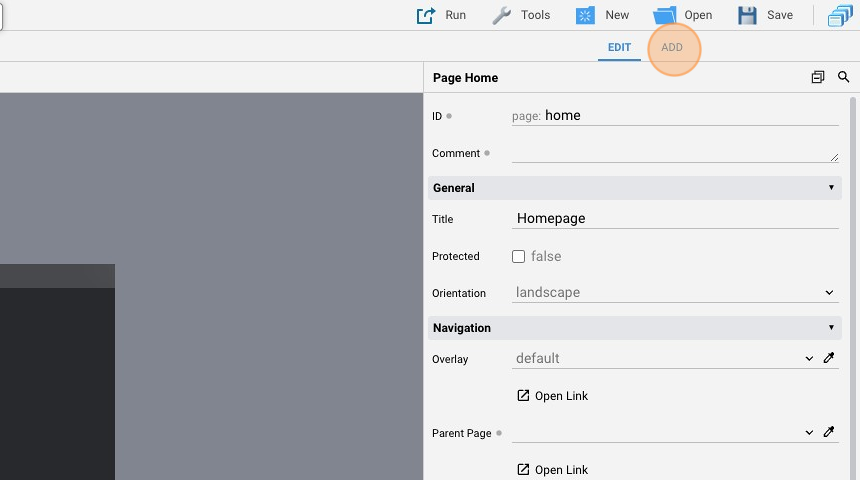
- Add a "text" object
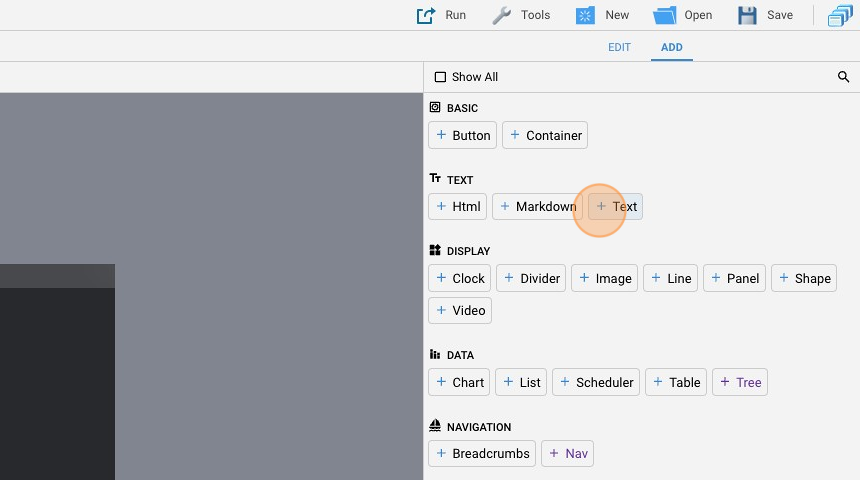
- Go back to "edit" mode
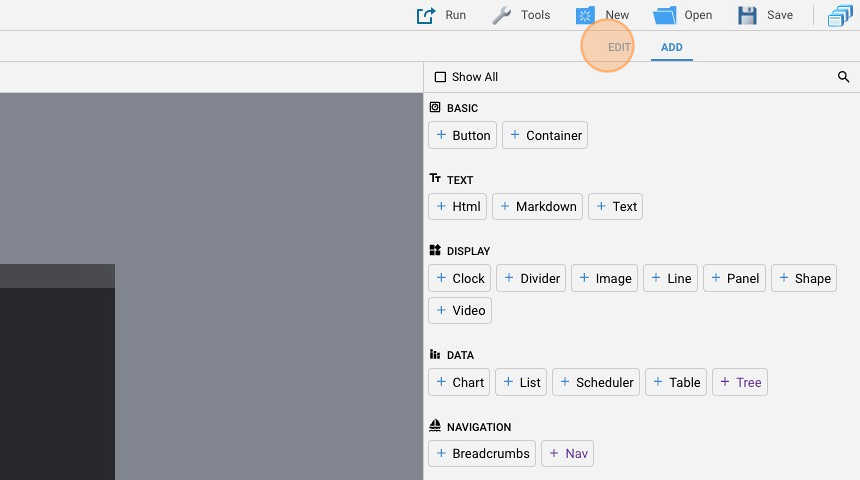
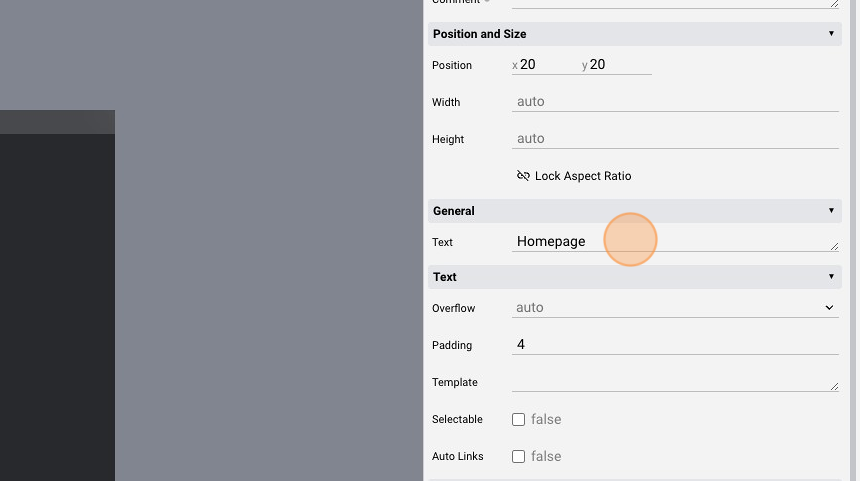
- Change the "Text" attribute to "Homepage"
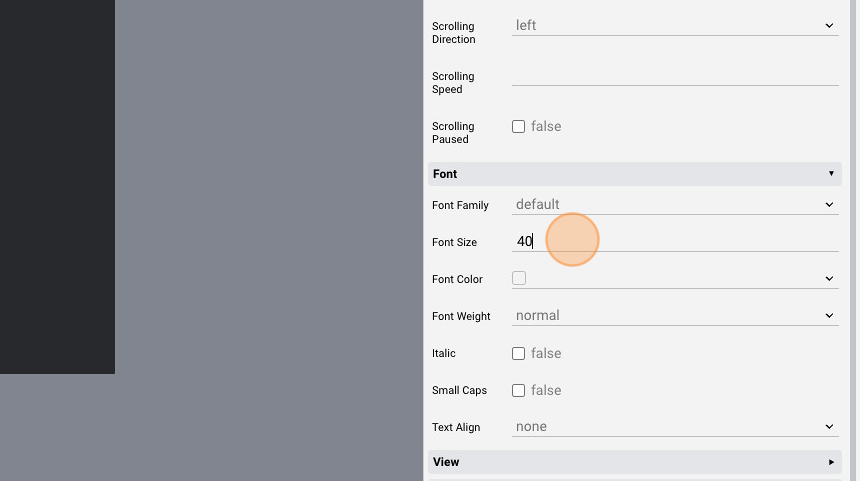
- Change the "Font Size" to "40"
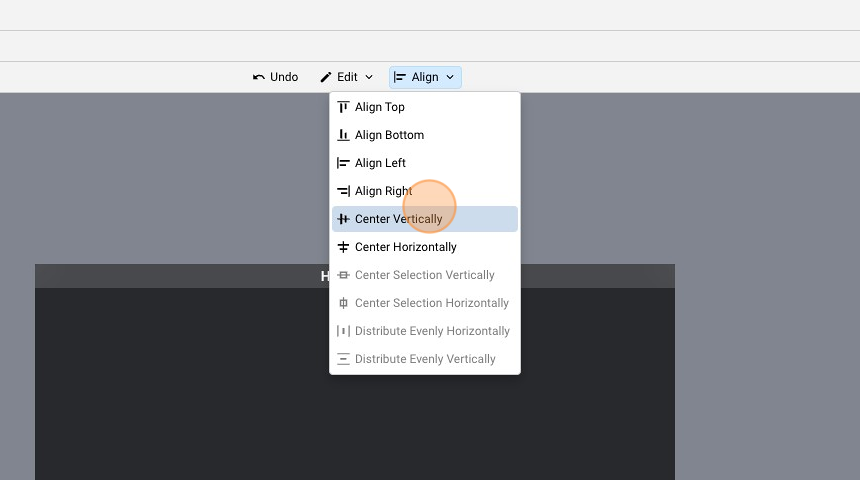
- Align the button by pressing "Align" and then "Center Vertically" and "Center Horizontally"
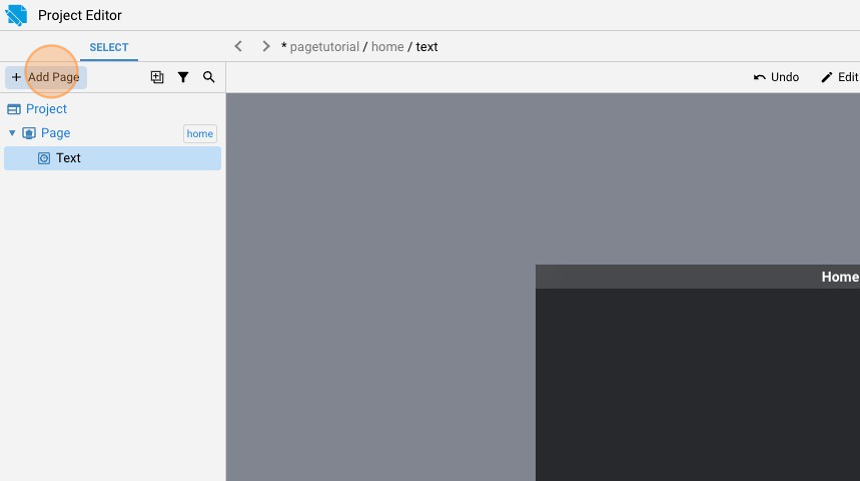
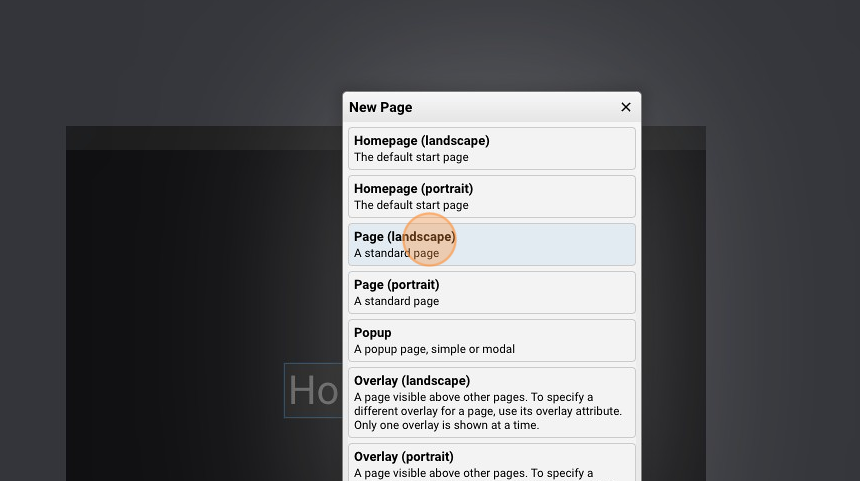
- Click "Add Page"
- Add a simple "Page (landscape)"
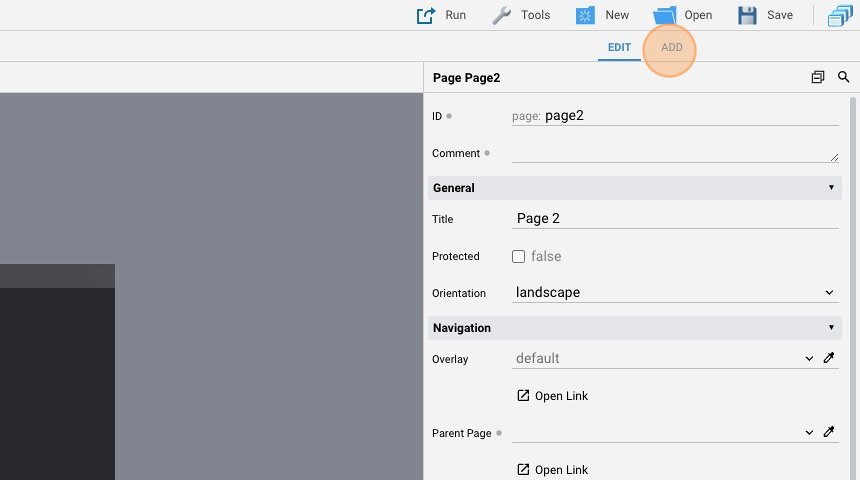
- Click "add"
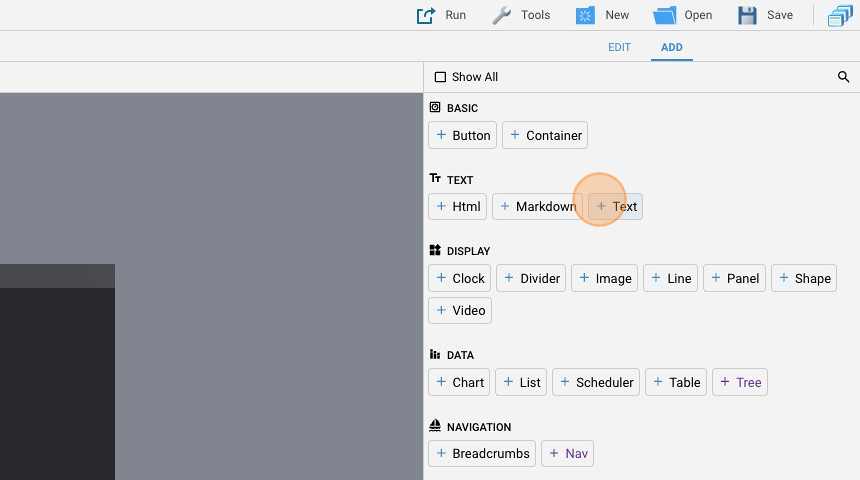
- Add the "Text" object
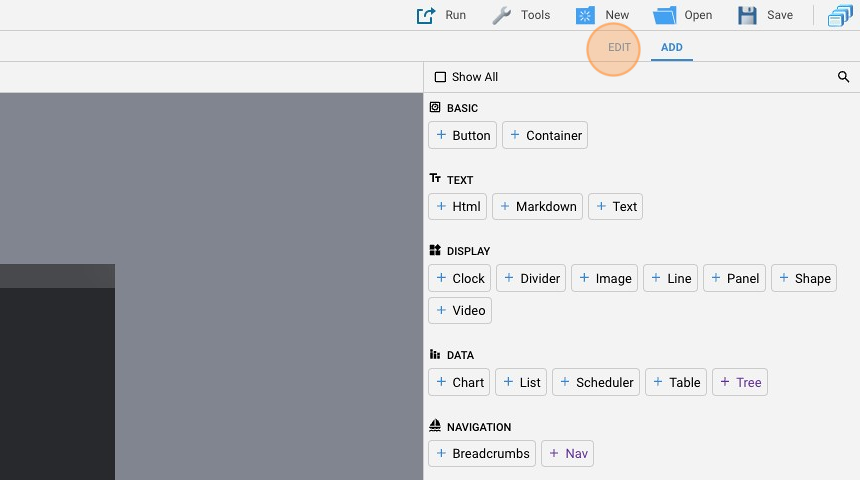
- Go back to the "edit" panel
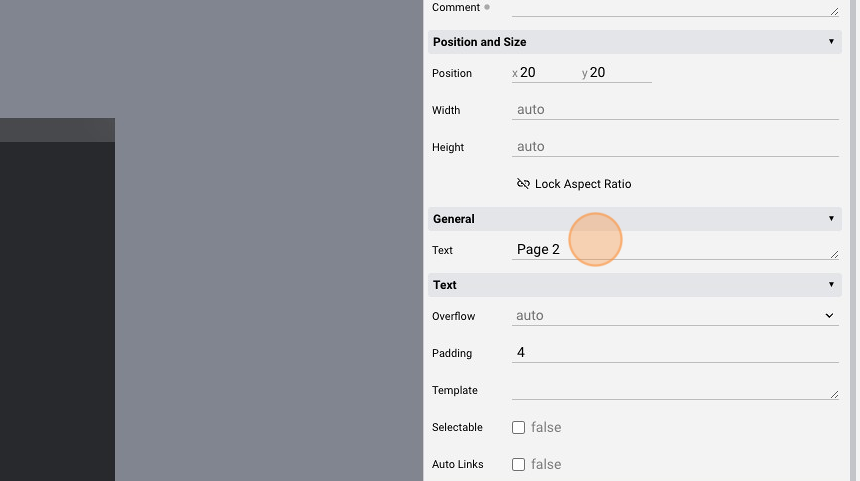
- Change the "Text" to "Page 2"
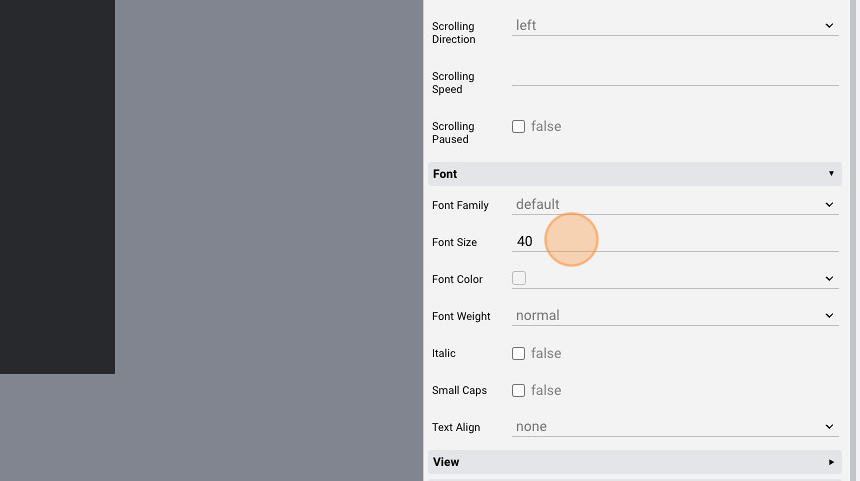
- Change the "Font Size" to "40"
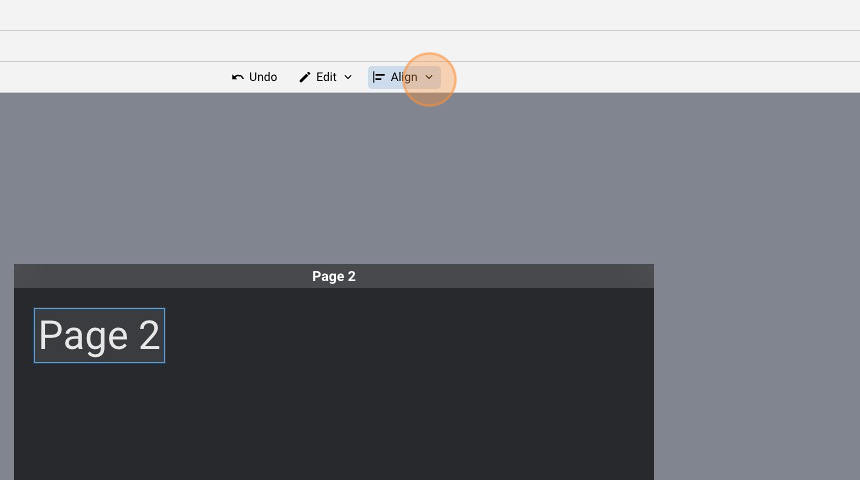
- Align the button in the middle of the page like before
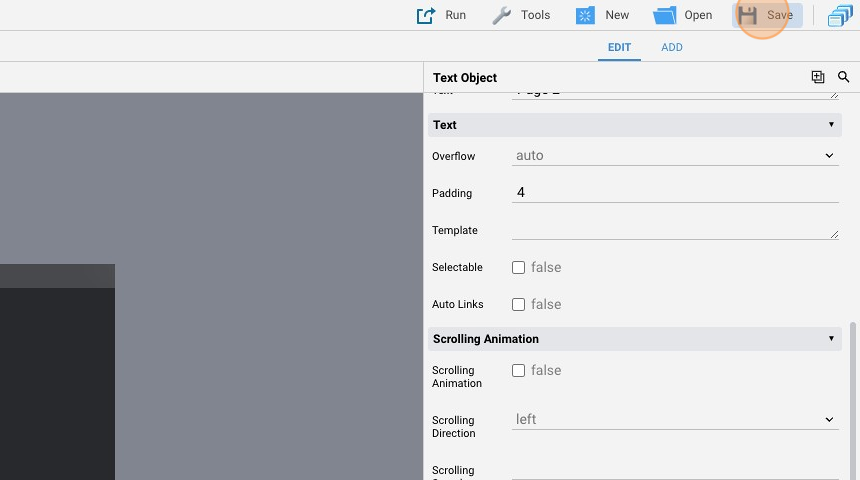
- Click "Save" to save the project
- Go to the "Code Editor"
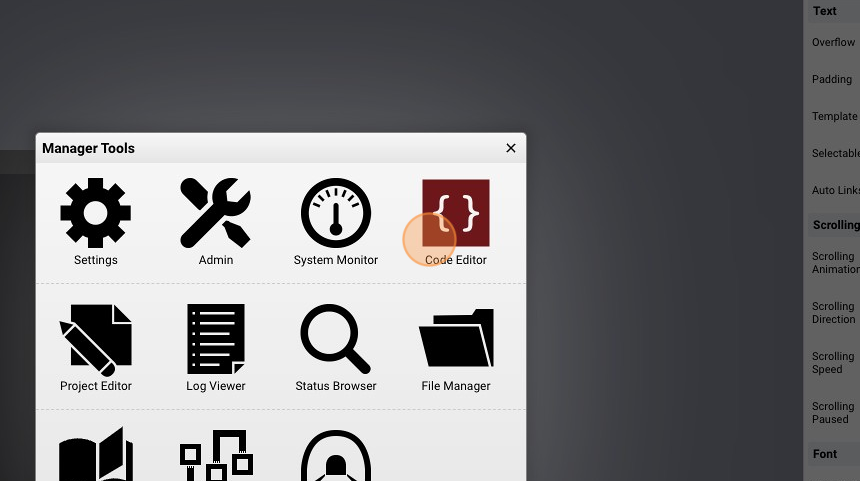
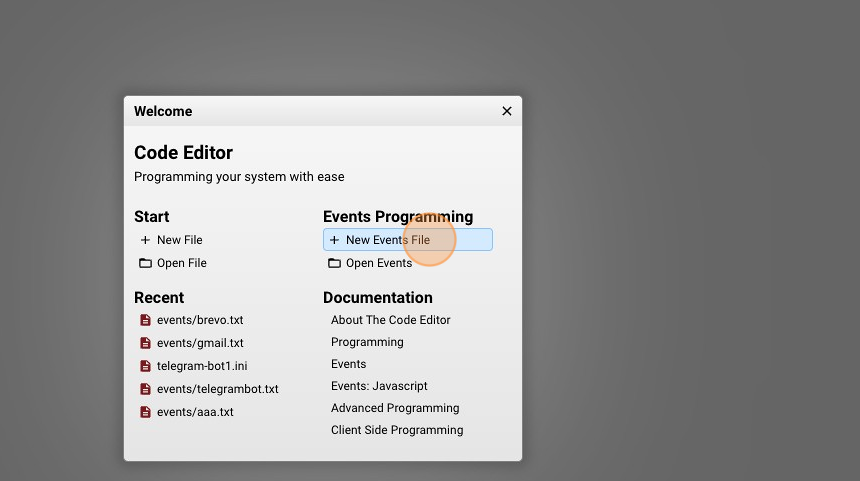
- Click "New Events File"
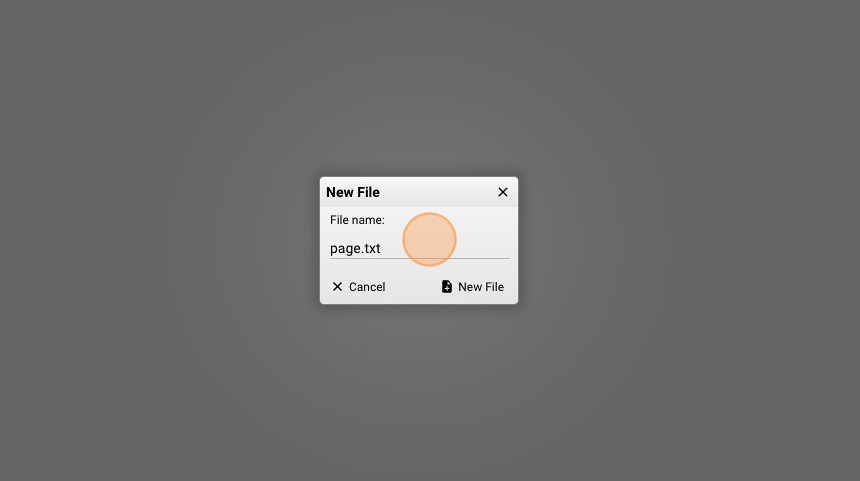
- Give it a name ("page.txt" for example) and click "New File"
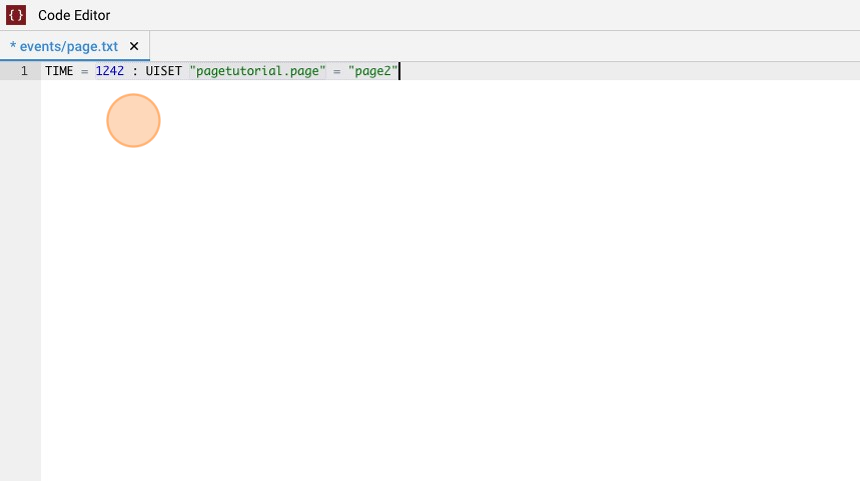
- Copy the following code to the file and save it:
TIME = 1242 : UISET "pagetutorial.page" = "page2"
What this does is it, when 12:42 strikes, set the actual page of the project called "pagetutorial" to the page with id "page2"
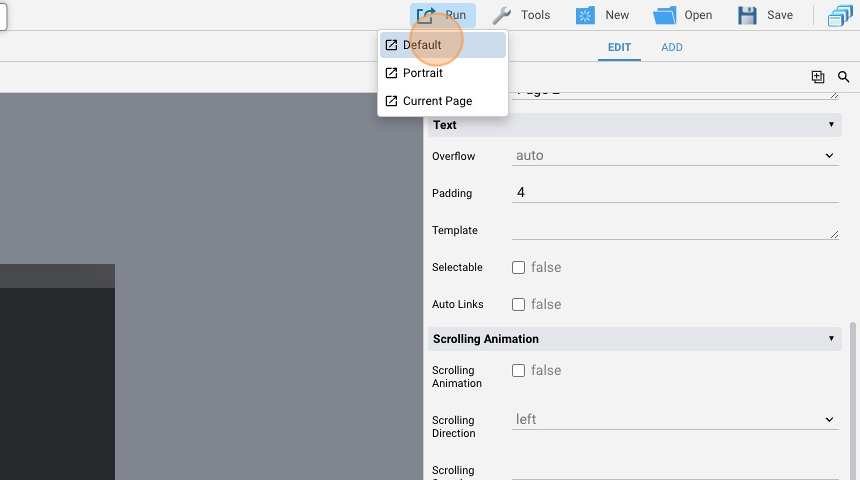
- Go back to the "Project Editor", click "Run" and then "Default" to launch the application
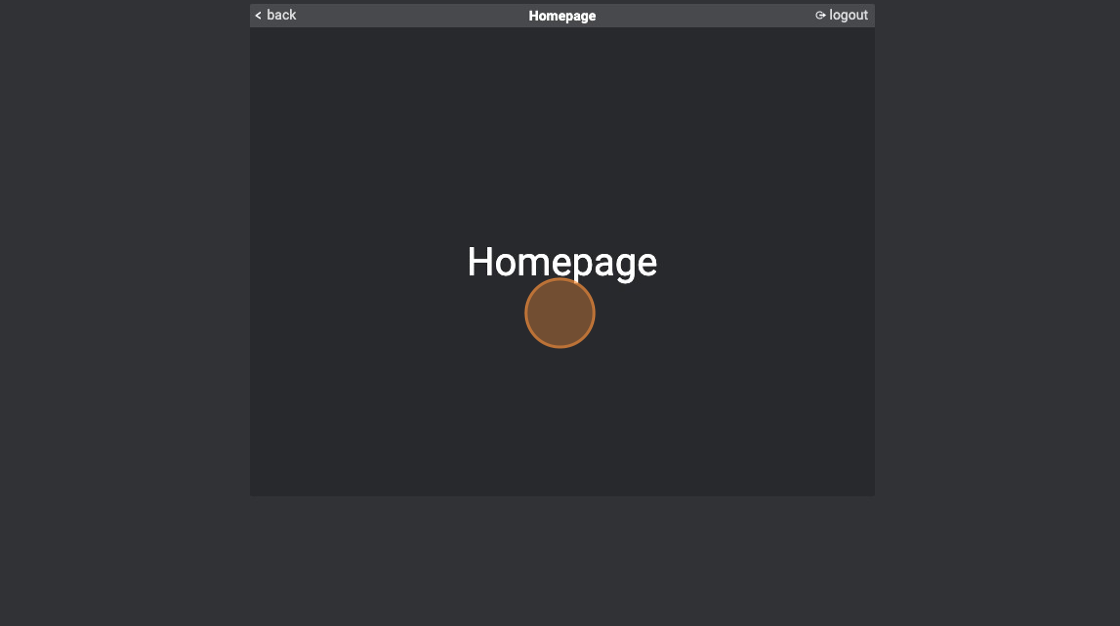
- When the project opens, we are in the "Homepage"
- As soon as 12:42 strikes, the page is changed to "Page 2"